Add a Merchant
This guide is for xperise ops/admin staff using the internal back office. It covers adding a new merchant so it can accept xperise card payments. For what the merchant's own staff do with the credentials you hand them, see Vendor Portal.
A merchant is a business that accepts xperise card payments — a taxi company, a hotel, or another type of vendor. Adding one here creates its account and issues the API key and webhook secret its systems need to connect to xperise.
1. What You Will See
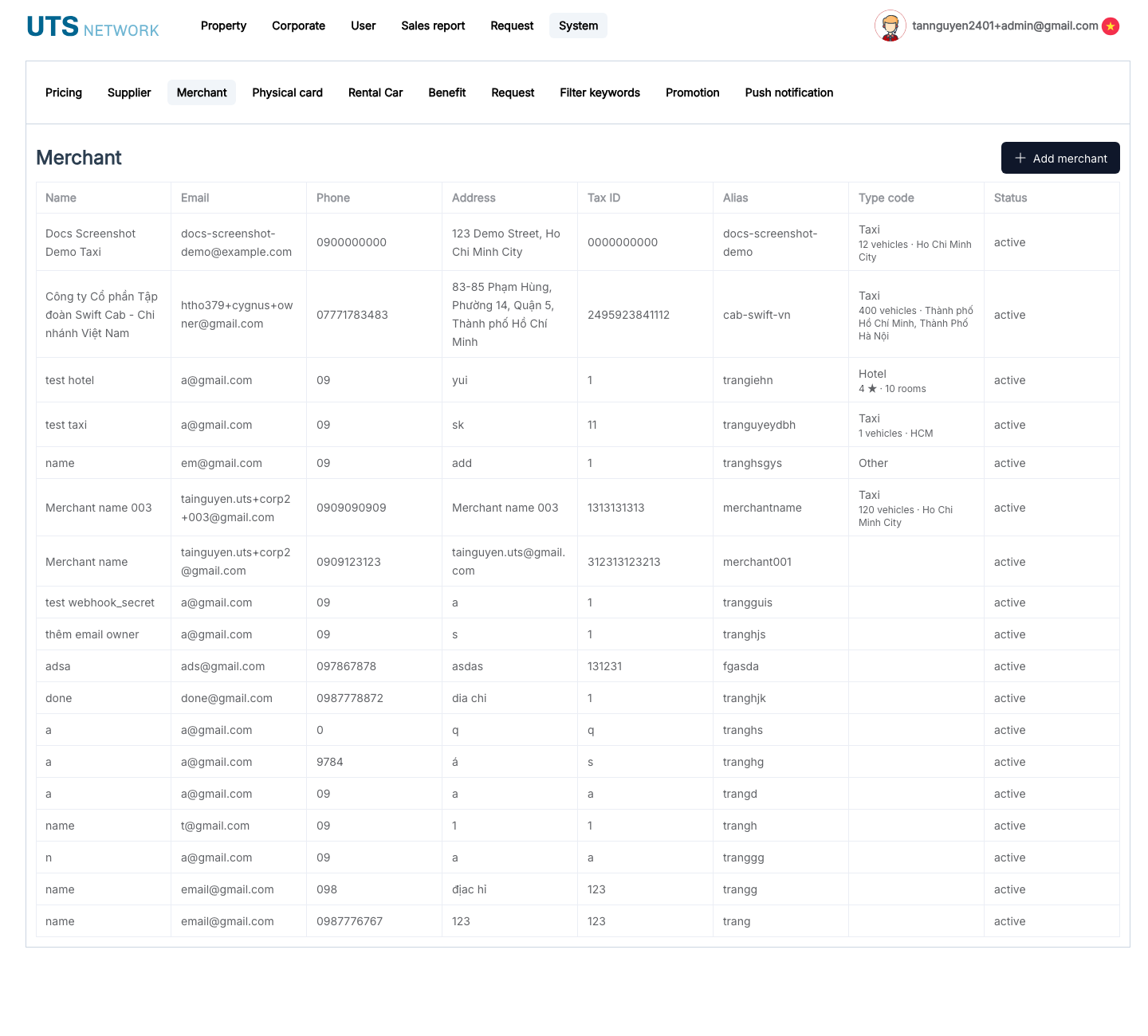
More merchants load automatically as you scroll down — there's no "next page" button.
2. Before You Start
Have this ready from the business you're onboarding:
| You need | For |
|---|---|
| Business name, email, phone, address | Their contact & identity record |
| Tax ID | Their registered tax number |
| A short alias | What their staff type in to sign in — see Vendor Portal |
| A webhook URL | Where xperise sends payment event notifications |
| An owner email | Links their owner's Xperise account so they can sign in without a separate password — see Vendor Portal |
| A capture tolerance | How much the final charge may exceed the amount originally held — see step 5 |
| Business type | Taxi, Hotel, or Other — decides which extra details you'll fill in |
3. Add a Merchant — Steps
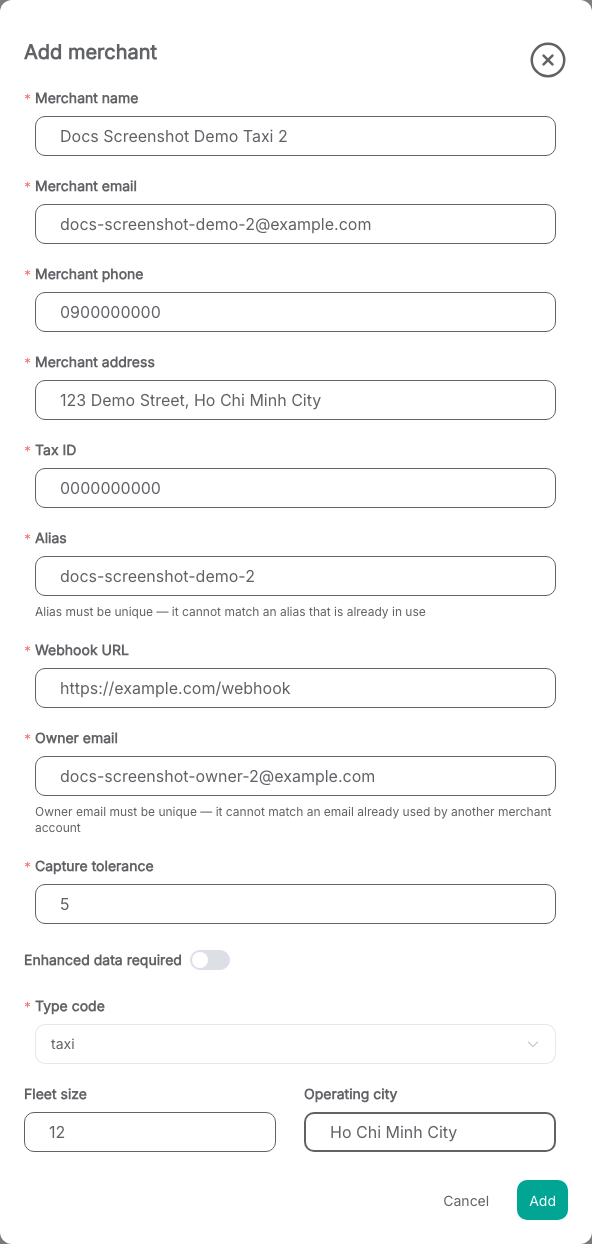
- Open the Merchant page.
- Click + Add merchant.
- Fill in the business's name, email, phone, address, and tax ID.
- Choose an alias — see rules below.
- Enter the webhook URL and owner email.
- Enter the capture tolerance, and turn on Enhanced data required if this merchant must submit trip/stay details on every payment (see below).
- Choose the business type and fill in its extra details, if any (see table).
- Click Add.
- Copy the API key and webhook secret shown — this is the only time you'll see them (see §7).
- Click Done. The new merchant now appears in the list.
4. Alias & Webhook URL
| Field | Rule |
|---|---|
| Alias | Lowercase letters, digits, and hyphens only; 3–64 characters; can't start or end with a hyphen (e.g. grab-hcm). Must be unique — no two merchants can share one. |
| Webhook URL | Must start with http:// or https:// — this is where xperise sends payment event notifications for this merchant. |
| Owner email | Must be unique — one merchant per owner email. Once linked, that person's Xperise account can sign in to the Vendor Portal as the merchant owner, no separate password needed. |
5. Capture Tolerance & Enhanced Data
- Capture tolerance is a percentage (e.g.
6.26= up to 6.26%) — how much a merchant's staff may charge above the amount originally held on a card when they finalize a payment. This covers small differences like a tip or a last-minute add-on. It's entered as a single digit with up to two decimal places (so at most9.99). - Enhanced data required, when on, means every payment from this merchant must include the relevant trip/stay details (e.g. a taxi's pickup and destination, or a hotel's guest and dates) before it can be included in a settlement statement. Leave it off if this merchant doesn't need that.
6. Business Type & Extra Details
| Business type | Extra details required |
|---|---|
| Taxi | Fleet size (number of vehicles), operating city |
| Hotel | Star rating, room count |
| Other | None |
7. Save the API Key and Webhook Secret
When the merchant is created, the back office shows its API key and webhook secret in a one-time panel. Copy both now — for security reasons, they are never shown again. Deliver them to the merchant's technical contact through a secure channel.
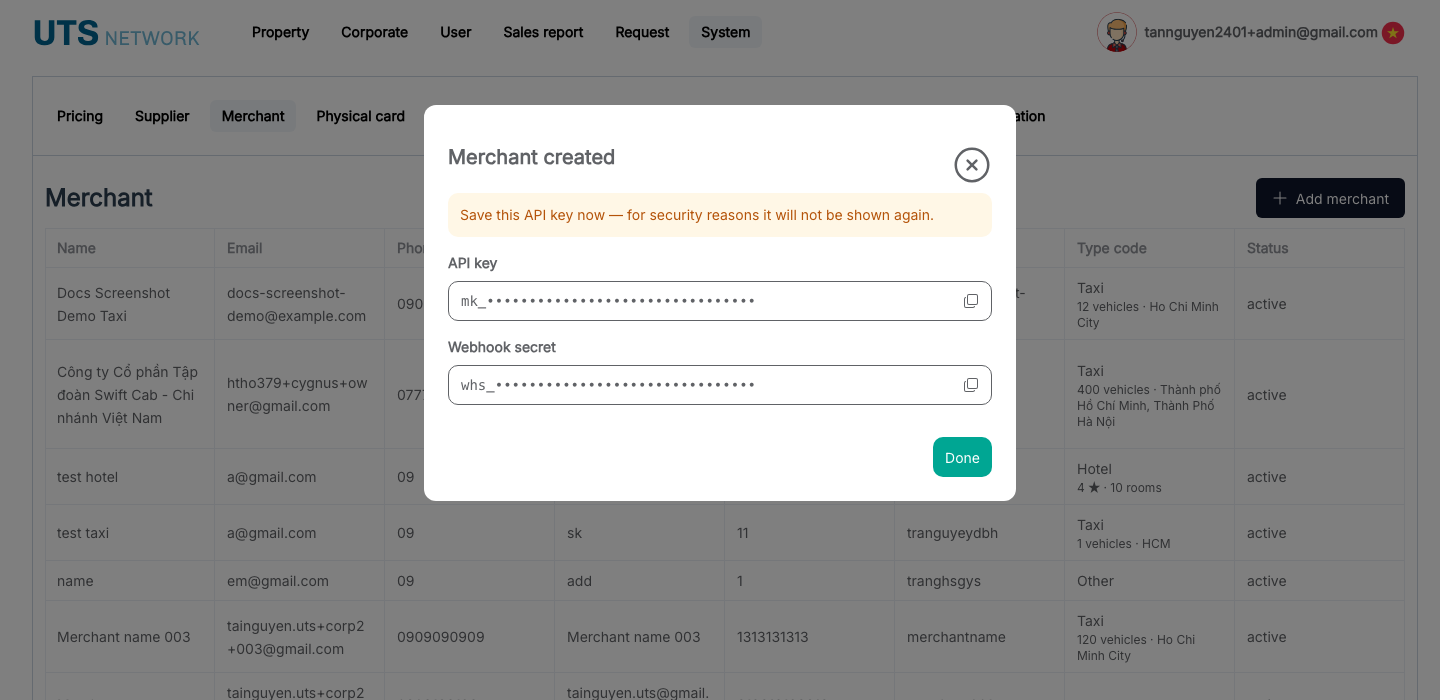
Click Done once you've copied both. The merchant now appears in the list, and their owner (if the owner email is linked to an Xperise account) or their staff (once the owner creates accounts for them) can sign in to the Vendor Portal to start accepting payments.
Quick Reference
| Business type | Extra fields |
|---|---|
| Taxi | Fleet size, operating city |
| Hotel | Star rating, room count |
| Other | — |
Related
- Vendor Portal — what the merchant's owner and staff do next: sign in and accept card payments.