Accepting Card Payments (Vendor Portal)
This guide is for merchant owners and staff using the card payments vendor portal. If you're an xperise ops admin looking to onboard a new merchant, see Add a Merchant instead.
The vendor portal is where your business's staff sign in to accept xperise card payments, and where the owner or an admin manages staff accounts and reviews activity.
1. Signing In
| You are | Where you sign in | How |
|---|---|---|
| The business owner | The main app | Sign in with Xperise account — one click, using your existing Xperise account |
| Staff | The public staff sign-in portal | Your business's alias, plus the username and password your admin created for you |
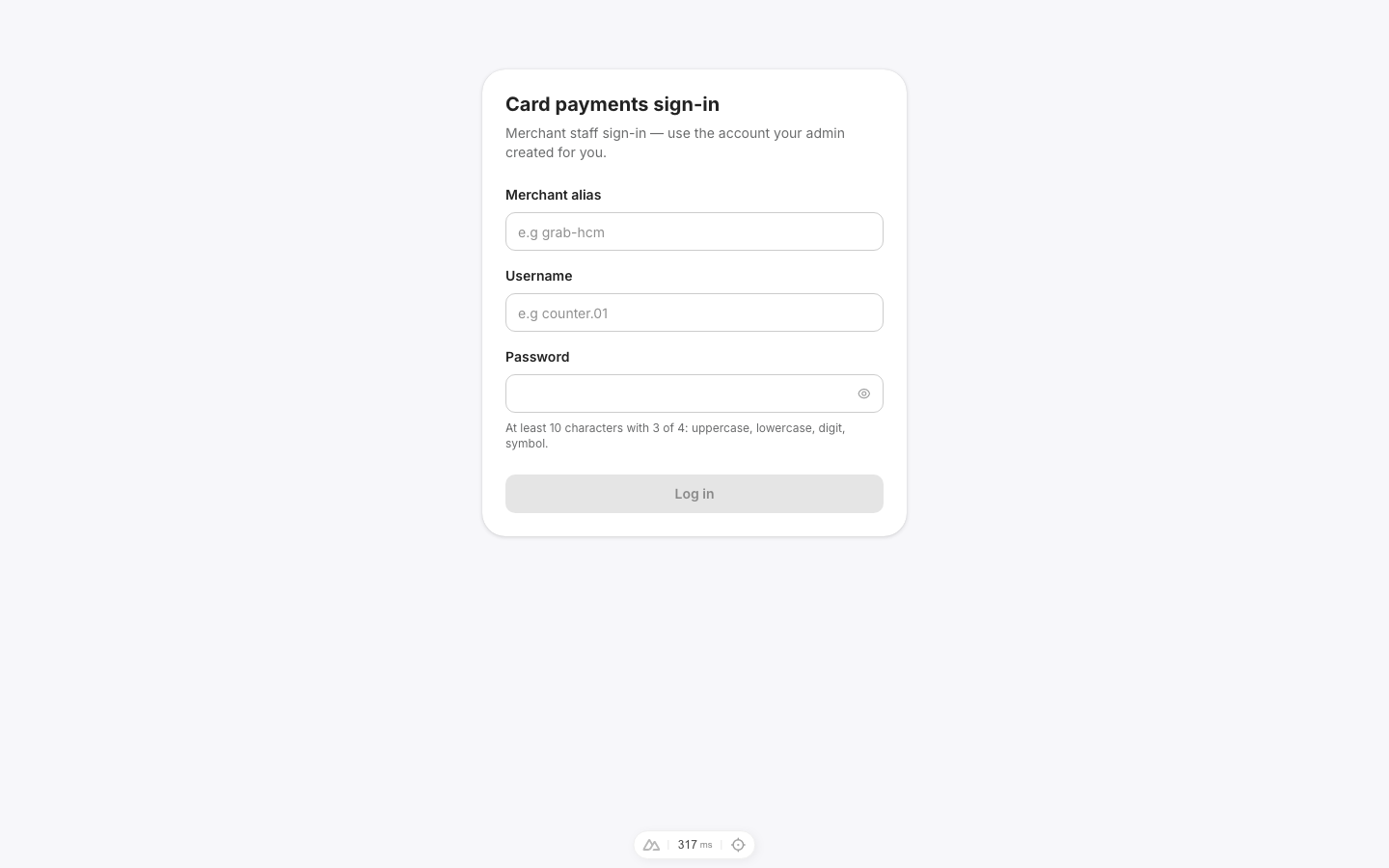
- If you're the owner and your Xperise account isn't linked to this merchant yet, sign in through the staff portal instead — an admin can link your account by adding it as a staff email (see §9), or your account may need to be linked as the merchant's owner (see Add a Merchant).
- A wrong alias, username, or password always shows the same "Invalid credentials" message — it never says which part was wrong.
2. Roles: Operator vs. Admin
| Role | Can do |
|---|---|
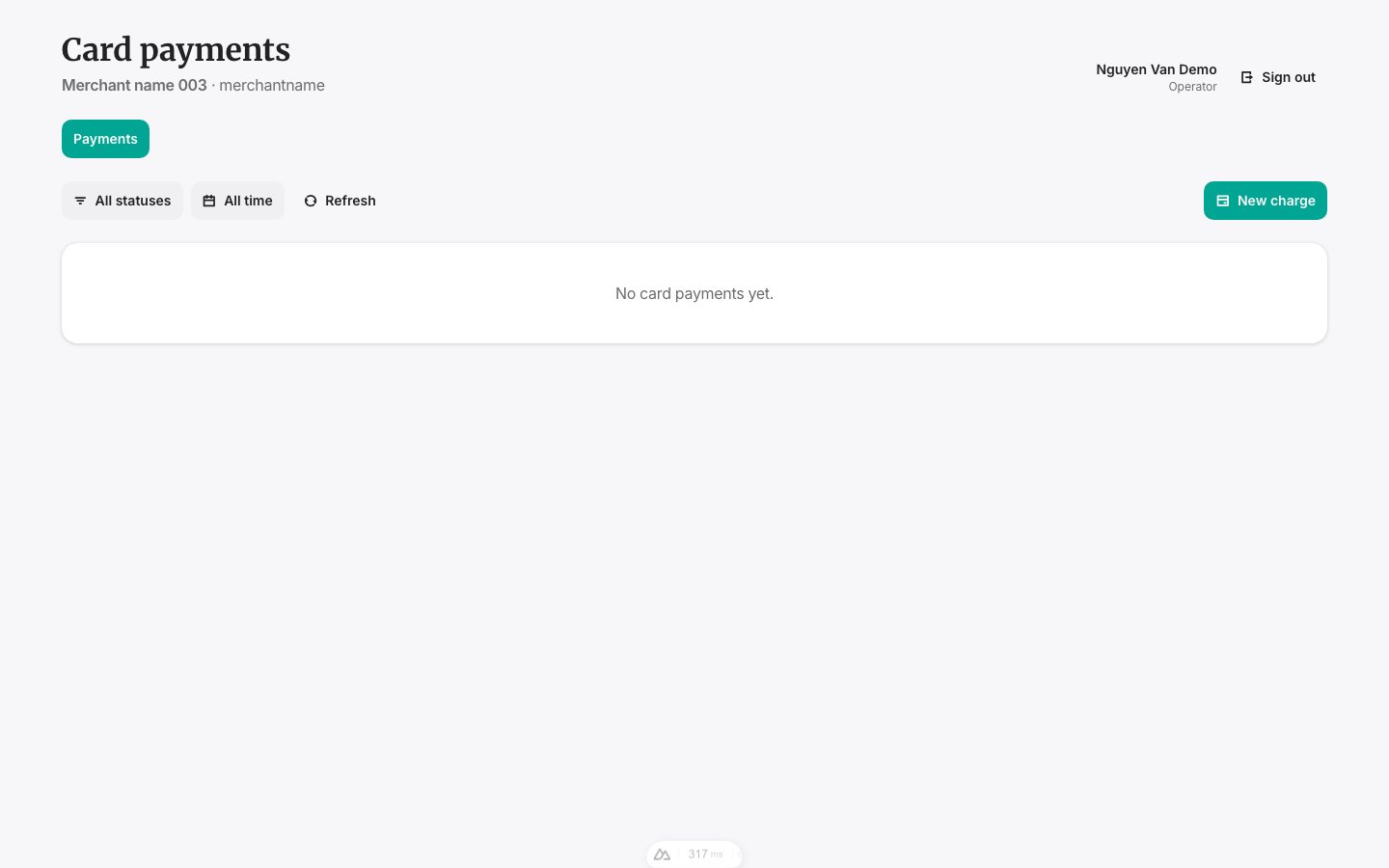
| Operator | Charge, verify, capture, void, and refund payments — their own only |
| Admin | Everything an Operator can, for everyone's payments, plus manage staff accounts and view the audit log |
If a page or button says it needs an Admin and yours doesn't, ask a merchant admin (or the owner) to change your role, then sign in again.
3. Your Payments List
| Column | Shows |
|---|---|
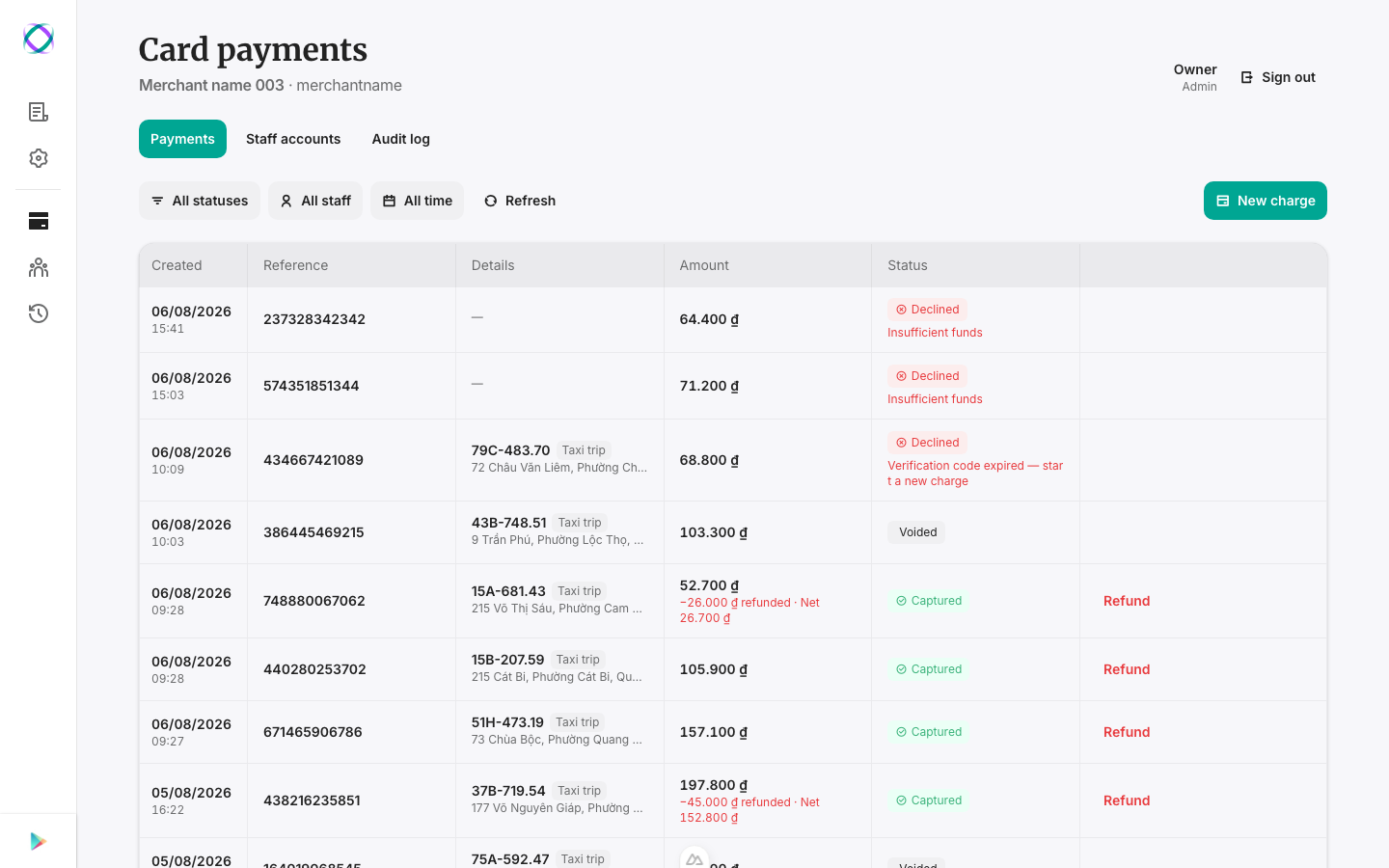
| Created | Date and time |
| Reference | Your order / receipt / trip ID |
| Details | What the payment was for — e.g. a taxi trip's plate and route, or a hotel stay's guest and dates |
| Amount | The charge amount (and any refund) |
| Status | See the table below |
More payments load automatically as you scroll down — there's no "next page" button.
Filters:
| Filter | Options |
|---|---|
| Status | All statuses, or any single status below |
| Staff | Admins only — everyone's payments, or one staff member's. An Operator only ever sees their own, so this filter doesn't apply to them. |
| Date | All time / Today / Last 7 days / Last 30 days / This month / an exact pair of days |
What each status means
| Status | Meaning |
|---|---|
| Awaiting code | The customer still needs to confirm with a verification code |
| Held | The amount is set aside on the card, not charged yet |
| Captured | Charged |
| Partially captured | Part of the held amount was charged; the rest is still held |
| Declined | The charge did not go through |
| Voided | A hold was cancelled and released back to the customer |
| Expired | The hold expired before it was captured |
4. Charging a Card (New Charge)
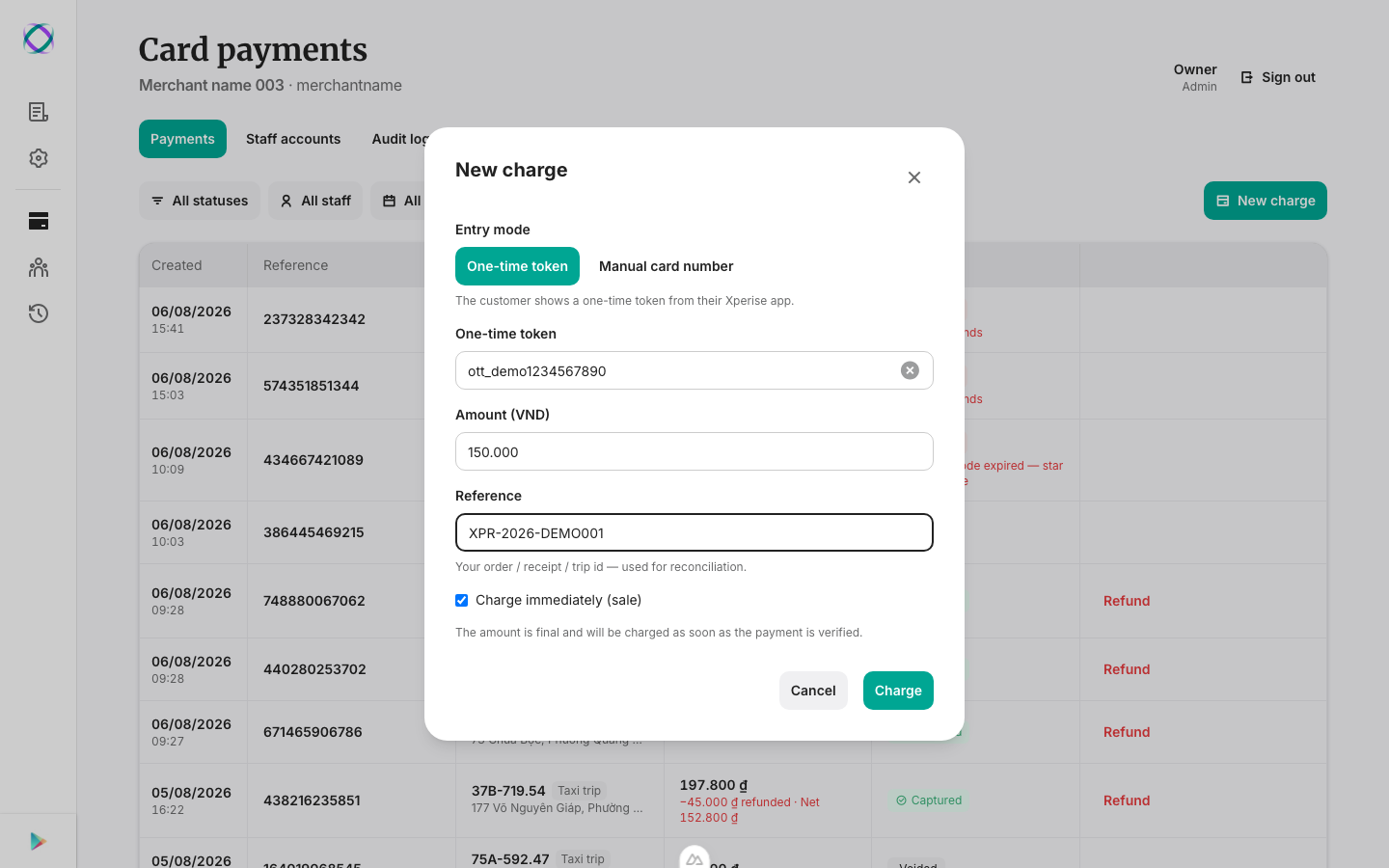
- Click New charge.
- Choose how the customer is paying:
- One-time token — the customer shows a one-time token from their xperise app (tap or QR).
- Manual card number — you type in the 16-digit card number yourself; the cardholder will confirm with an SMS code.
- Enter the amount (whole VND, no decimals).
- Enter a reference — your order, receipt, or trip ID, used to match this payment to your own records later.
- (Manual card number only) If the card has a printed code and the customer isn't using SMS verification, enter it here — otherwise leave it blank.
- Choose how to charge it:
- Charge immediately (sale) — the amount is final and charges as soon as it's verified.
- Leave it unchecked to just hold the amount now and capture the final amount later — useful when you don't know the exact final bill yet (e.g. a taxi fare, or a hotel stay with extras still to add).
- Click Charge.
Why a charge might be declined
| You'll see | Meaning |
|---|---|
| Insufficient funds | The card doesn't have enough available balance |
| Card inactive / Card blocked / Card expired | The card can't be used right now |
| Card temporarily locked after too many attempts | Too many failed attempts on this card |
| Per-transaction / Daily / Monthly limit exceeded | The amount is over one of the cardholder's limits |
| Trip budget exceeded | Over the budget set for this trip |
| Corporate policy violation | Blocked by the cardholder's company policy |
| Merchant not allowed for this card | This card can't be used at your business |
| Merchant category not allowed | Your business category isn't allowed for this card |
| Too many attempts — try again later | Slow down and retry shortly |
| Token invalid or expired — ask for a new one | Ask the customer for a fresh token |
| This card requires its printed code | Enter the card's printed code, or ask the customer to use SMS verification |
| Wrong verification code | The code entered didn't match |
| Verification code expired — start a new charge | Too much time passed; start over |
| Employee policy check unavailable — try again later | A temporary system issue — retry shortly |
5. Entering a Verification Code
When a card needs extra security, the customer receives a code by SMS.
- Ask the customer for the code sent to their phone.
- Enter the 4-digit code.
- Click Verify.
If the code is wrong, you'll see "Wrong code — ask the customer to check the SMS and try again" — the screen also shows how many attempts are left. If the payment was already handled on another device in the meantime, the screen simply closes and the list refreshes.
6. Finalizing a Held Payment (Capture)
Use this once you know the exact final amount for a payment that's currently Held or Partially captured — for example, once a trip or stay is over.
- Find the payment and click Capture.
- Check or adjust the final amount. It may exceed the originally held amount only up to your business's configured capture tolerance.
- Leave "Final capture — release the remaining hold" checked if this is the last charge for this payment. Uncheck it if you plan to capture more later (the payment stays Partially captured).
- Click Capture.
If the amount is too far above the held amount, you'll see "The amount exceeds the allowed capture tolerance." If the payment can no longer be captured (e.g. it already expired or was voided elsewhere), you'll see "This payment can no longer be captured — refresh the list."
7. Cancelling a Held Payment (Void)
Available only before a payment has been captured (status Held or Awaiting code).
Click Void next to the payment and confirm. The hold on the customer's card is released, and this cannot be undone.
8. Refunding a Customer
Available once a payment has been captured (fully or partially).
- Click Refund next to the payment.
- Adjust the refund amount — full or partial. You can refund again later, as many times as needed, until the whole captured amount has been refunded.
- Optionally add a reason.
- Click Refund.
9. Managing Staff Accounts (Admins Only)
Only merchant admins can manage staff accounts. If you're not an admin, you'll see: "Ask a merchant admin (or the merchant owner) to change your account's role to Admin, then sign in again."
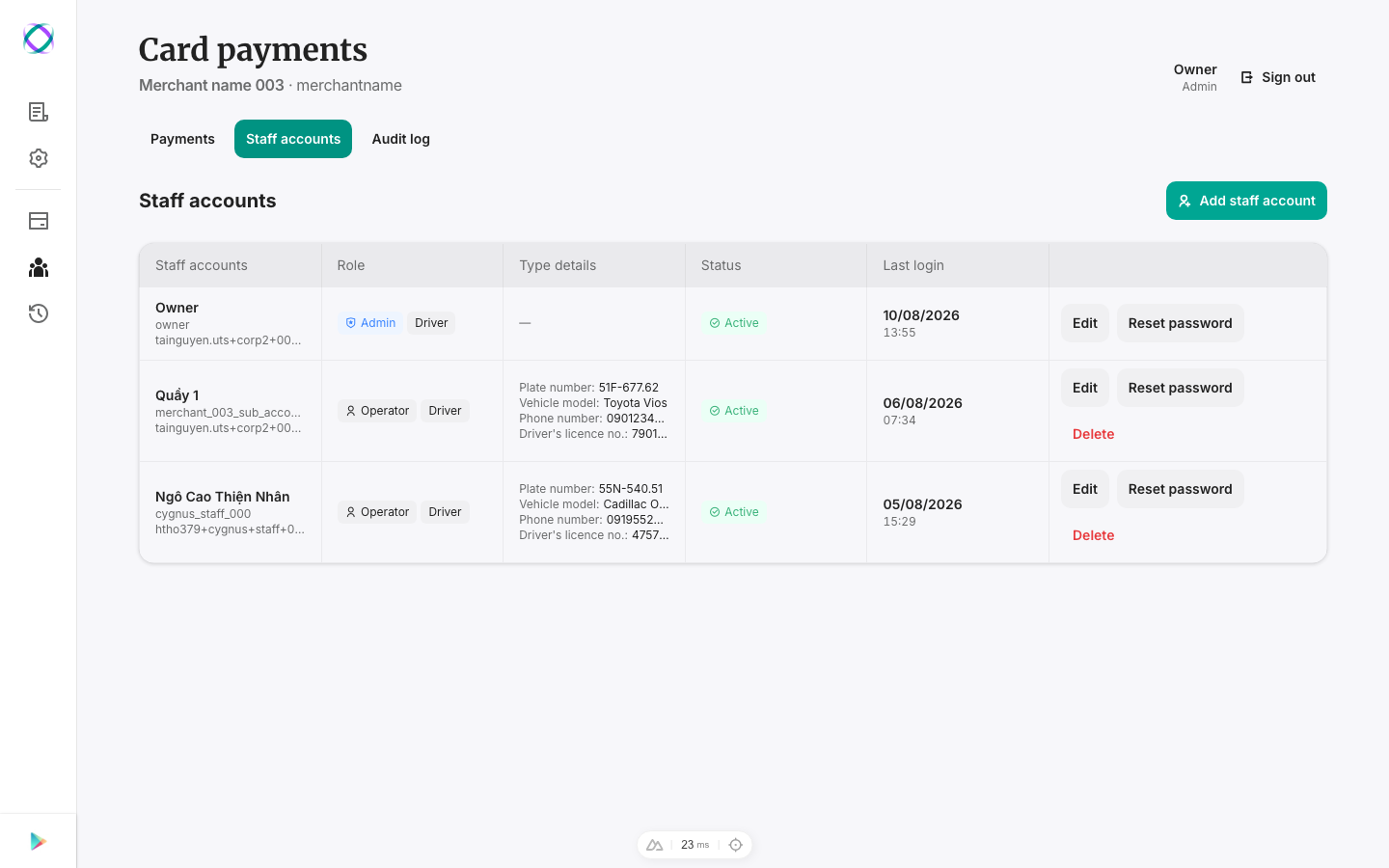
Adding a staff account
-
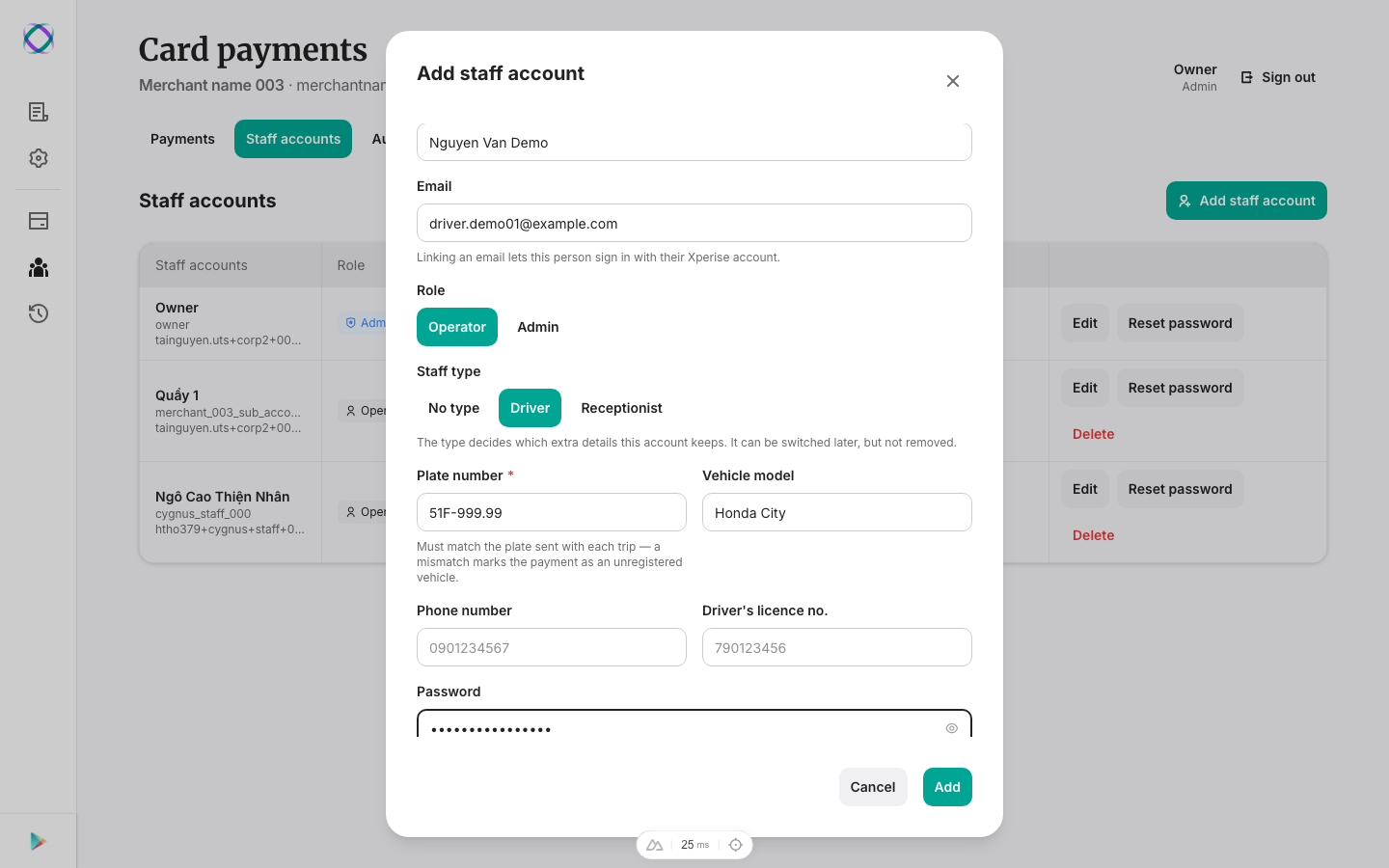
Go to Staff accounts → Add staff account.
-
Enter a username (3–32 characters: letters, digits, dot, dash, underscore) — this cannot be changed later.
-
Enter a display name and, optionally, an email. Linking an email lets that person sign in with their own Xperise account instead of the username/password.
-
Choose a role: Operator or Admin.
-
Choose a staff type, if relevant, and fill in its details:
Staff type Details Driver Plate number (required — must match the plate sent with each trip, or the payment gets flagged as an unregistered vehicle), vehicle model, phone number, driver's licence no. Receptionist Staff code (required), desk, shift noteA staff type can be switched later (e.g. Driver → Receptionist) but, once set, can't be cleared back to "No type." Create a new account instead if someone genuinely needs no type.
-
Set a temporary password — at least 10 characters, with at least 3 of: uppercase, lowercase, digit, symbol.
-
Click Add.
Editing or deactivating a staff account
Click Edit to change display name, email, role, or staff type/details at any time. Turn off Active to deactivate an account — this immediately signs them out everywhere. You can't deactivate your own account.
Resetting a password
Click Reset password, set a new one (same rules as above). This signs that person out everywhere — they'll need to log in again with the new password.
Removing a staff account
Click Delete and confirm. This permanently removes the account — their past actions stay in the audit log. You can't delete your own account.
10. Reviewing Activity (Audit Log)
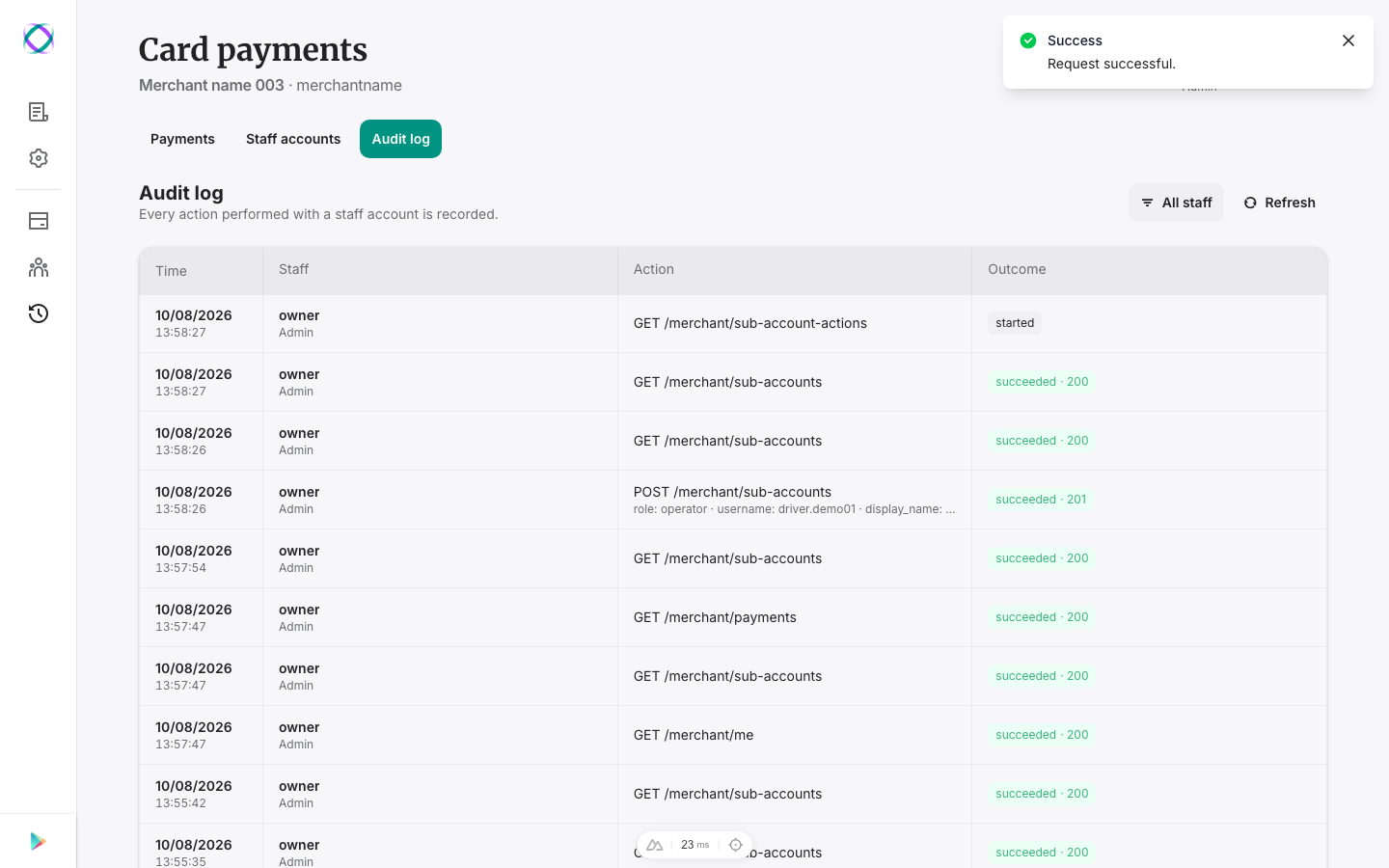
Also admins only (same locked message as staff accounts). The Audit log shows every action taken under a staff account: who did it, when, what it was, and whether it succeeded. Filter it down to one staff member using the dropdown.
Quick Reference
| I want to… | Go to |
|---|---|
| Sign in as the owner | §1 — "Sign in with Xperise account" |
| Sign in as staff | §1 — the staff portal |
| Charge a customer's card | §4 — New charge |
| Finish entering a customer's SMS code | §5 |
| Charge the final amount after a hold | §6 — Capture |
| Cancel a hold | §7 — Void |
| Give money back | §8 — Refund |
| Add or remove a staff login | §9 |
| See who did what | §10 — Audit log |
Related
- Add a Merchant — how this business was onboarded, and where its alias and capture tolerance come from.