CS Dispatch Portal — Operator Guide
This guide is for CS operators who handle ride requests in the CS dispatch portal (Booking requests · XPAY operations portal). It covers the whole life of a ticket: creating it from a hotline call, booking a car, following the ride, and completing and charging it.
You will need: a system admin xperise account. Any other account can sign in but sees a No access screen.
For setting up the taxi and car providers you book with, see Managing Providers. For how riders link a card themselves, see Linking a Card from Zalo.
The ticket at a glance
Every ride request is a ticket with a reference like XP-1234. A ticket moves through these
statuses:
| Status | Tab | Meaning |
|---|---|---|
| Awaiting car | To do | No car yet — book one |
| Awaiting driver | To do | An offer is out to an XPay driver, or an order is out to a provider's API. In the ticket panel it shows as Awaiting provider when it's a provider order. |
| Awaiting customer | In progress | An option was sent to the customer; waiting for their answer |
| Vehicle assigned | In progress | A car and driver are on the ticket; waiting for pickup |
| Riding | In progress | The customer is in the car |
| Completed | Closed | The ride is finished (charged or closed uncharged) |
| Cancelled | Closed | The ride was cancelled |
1. Signing in
- Open https://mobility.xperise.com/mobility.
- Enter your Email and Password (at least 6 characters) and click Log in.
- You land on Booking requests.
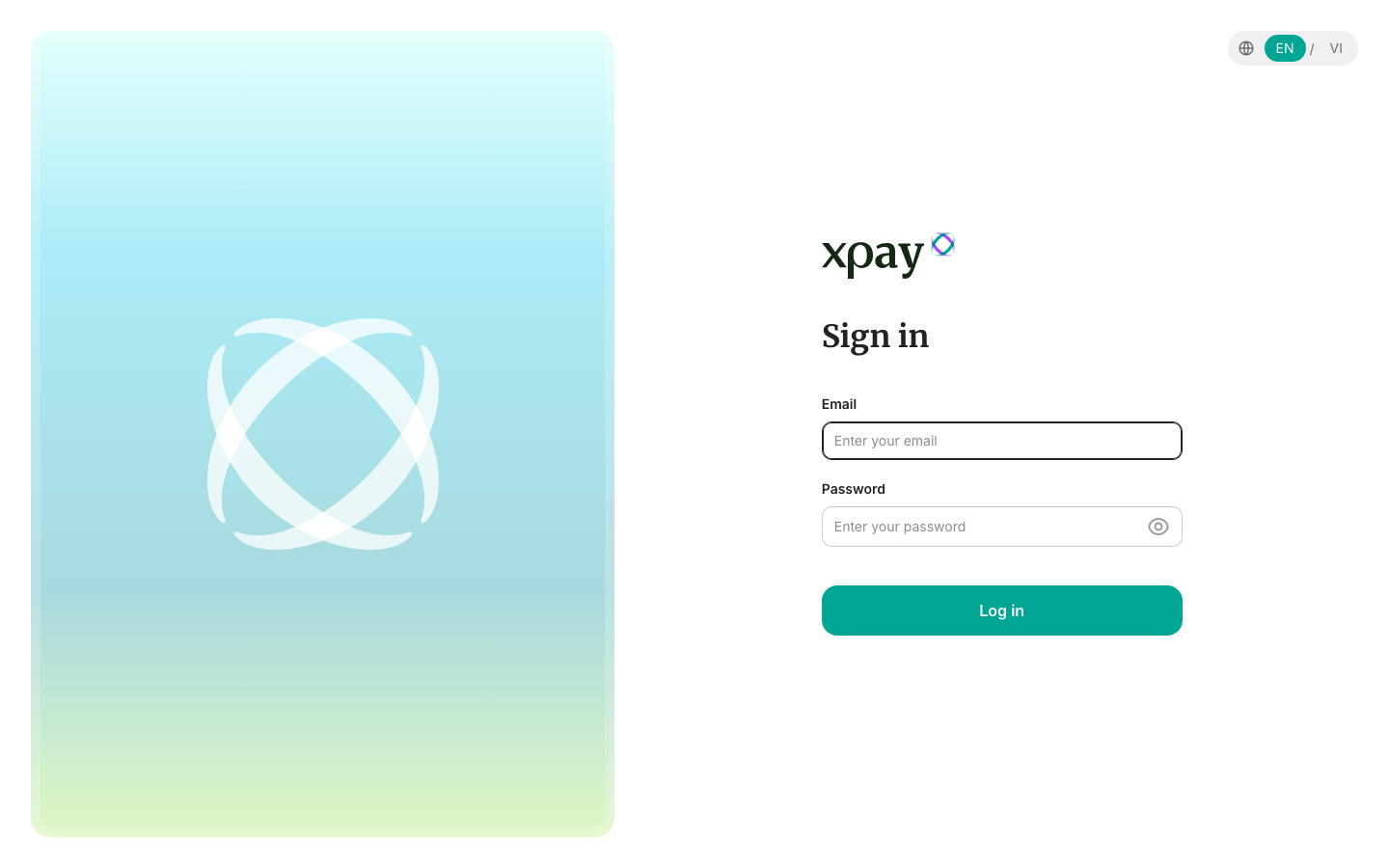
Use the EN / VI switch in the top-right corner of the sign-in page to change the language.
| You see | What to do |
|---|---|
| No access — "The dispatch portal is for system admin accounts only." | Your account isn't a system admin. Click Sign out and sign in with another account, or contact an admin. |
| Couldn't load your profile | Click Retry. If it keeps failing, Sign out and sign in again. |
Your session renews itself in the background. If it can't, you are sent back to the sign-in page, and after signing in you return to the page you were on.
To sign out or switch language later: click your name (top right) → choose VI / EN, or click Sign out.
2. The Booking requests screen
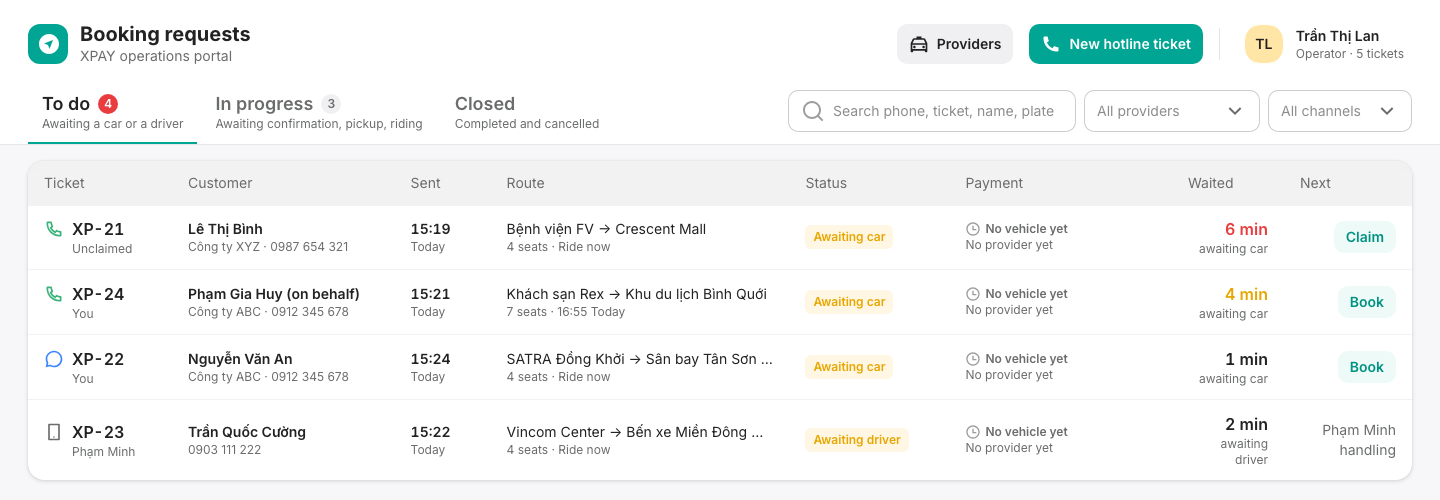
The header has:
- Providers — opens the provider list (see Managing Providers).
- New hotline ticket — creates a ticket from a phone call (see §3).
- Your name — with Operator · N tickets, the number of open tickets you are handling.
Tabs
| Tab | Shows |
|---|---|
| To do | Awaiting a car or a driver. The count turns red when there is work waiting. |
| In progress | Awaiting confirmation, pickup, or riding |
| Closed | Completed and cancelled tickets |
Within a tab, the most urgent status comes first, then the ticket that has waited longest. Closed shows the most recently closed first.
Search and filters
- Search — phone, ticket number, name, or plate.
- All providers — only tickets whose car (or pending option) is from that provider.
- All channels — Hotline, Zalo OA, App, or API.
Columns
| Column | Shows |
|---|---|
| Ticket | Channel icon, XP- number, and who is handling it (or Unclaimed) |
| Customer | Name (or New customer; (on behalf) when booked for someone else), company and phone |
| Sent | When the request came in |
| Route | Pickup → drop-off (Hourly when there is no drop-off), seats, pickup time or Ride now, plate |
| Status | The ticket status |
| Payment | Paid, Prepaid / Postpaid · meter, a pending proposal, or No vehicle yet |
| Waited | Time in the current status (closed tickets show the closing time). For tickets awaiting a car it turns amber at 3 min and red at 5 min. |
| Next | A one-click action — Claim, Book, or Complete — or what the ticket is waiting for |
Click a row to open the ticket panel on the right.
Live updates
The list updates on its own as tickets change. If the live connection drops for more than a few seconds you'll see "Live updates disconnected, retrying. The list may be out of date." — click Reload to refresh by hand.
When an XPay driver answers an offer on your ticket, a notice pops up: accepted, declined, picked up the customer, or collected payment.
The ticket panel
The panel shows the ticket's details (read only) and, at the bottom, a Next step box that always tells you what to do next and gives you the buttons for it.
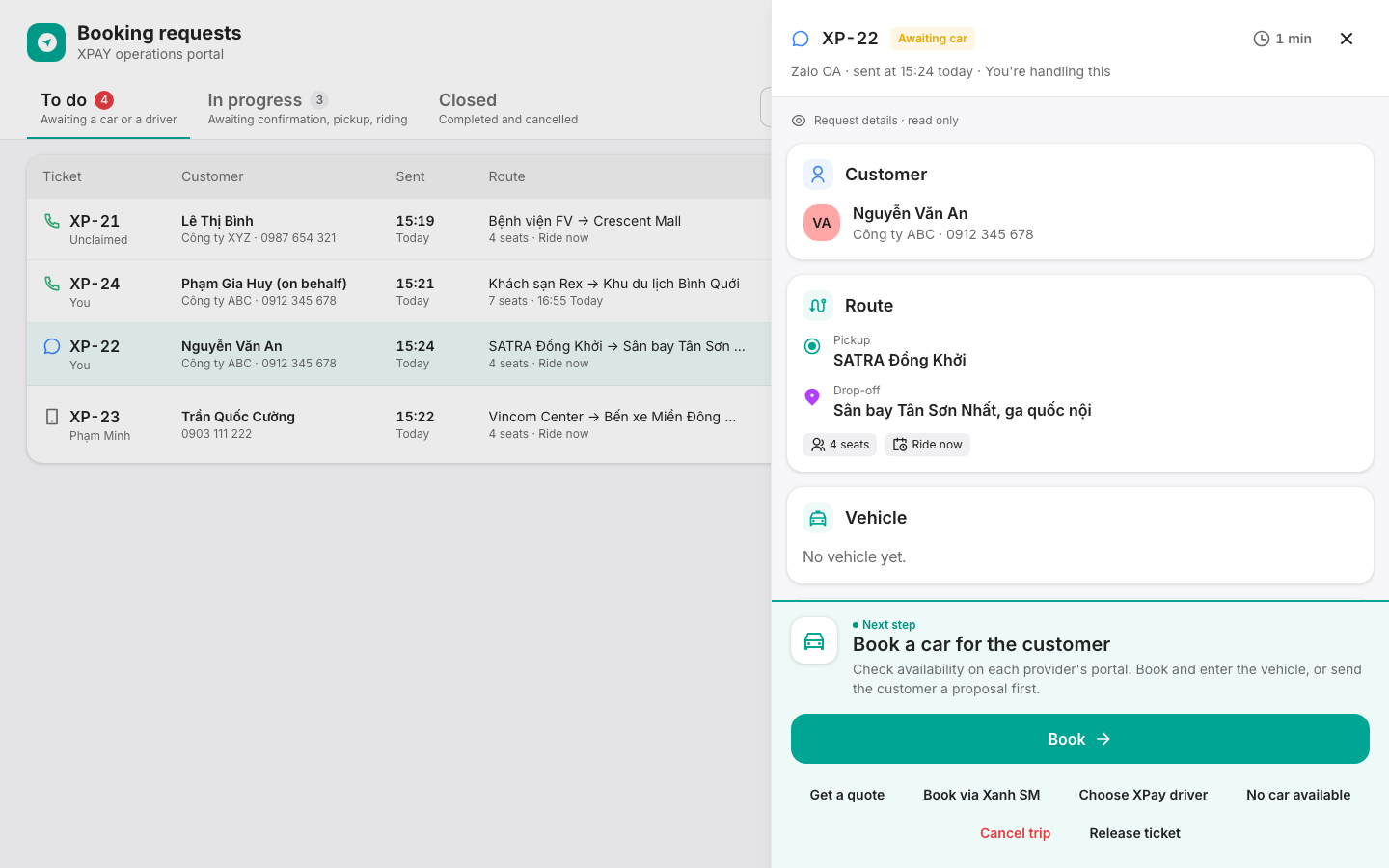
| Section | Shows |
|---|---|
| Customer | Name, company, phone — plus the passenger's name and phone when booked on behalf |
| Route | Pickup and drop-off, seats, pickup time, and the driver note |
| Vehicle | Provider, car, driver, pickup and arrival times, and the provider's order status when booked via its API |
| XPAY payment | How the ride will be paid and the payment card (see §9) |
| History | Everything that happened to the ticket, who did it, and when |
3. Creating a hotline ticket
Use this while you're on the phone with a customer. Tickets from Zalo OA, the App and the API arrive in the queue on their own — you don't create those.
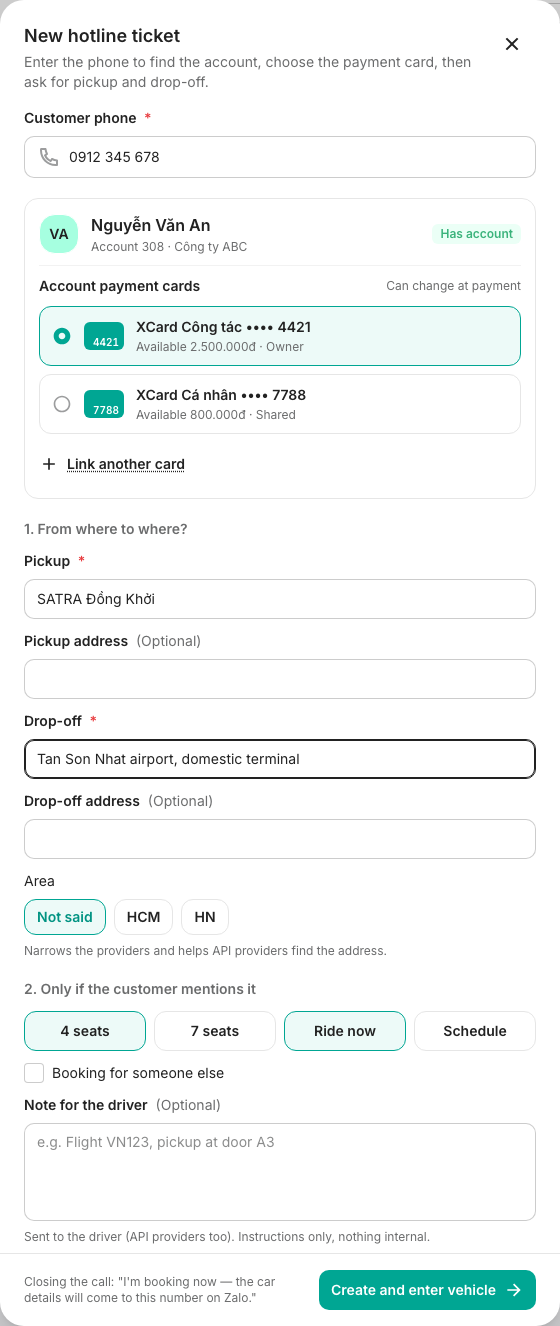
- Click New hotline ticket.
- Customer phone — type the caller's number. The portal looks it up:
- If the number called before, you'll see Returning customer: name · company; otherwise New number, no previous tickets.
- It also looks for the caller's XPay account and cards (next step).
- Payment card — optional. You can create the ticket without one and add the card later in
the ticket's XPAY payment section, or when completing the ride ("Can change at payment").
- The number has an XPay account — the account's cards are listed with their available balance. If the account has exactly one active card, it's picked for you; with several, pick one if the caller wants to pay by card. If there's no card yet, click Link a card (see §9).
- No account for this number — to pay by card, click Enter card and type the card number and PIN the caller reads out.
- 1. From where to where?
- Pickup and Drop-off — required (e.g. SATRA Dong Khoi, Tan Son Nhat airport, domestic terminal).
- Pickup address and Drop-off address — optional, but a street address is more precise.
- Area — shown when providers have service areas. It narrows the providers. Leave it on Not said if the customer didn't say.
- 2. Only if the customer mentions it
- 4 seats (default) or 7 seats.
- Ride now (default) or Schedule → enter the Pickup time as
HH:mm. A time more than an hour in the past is taken as tomorrow. - Booking for someone else → the Passenger name and Passenger phone are then required.
- Note for the driver — sent to the driver (API providers too). Instructions only, nothing internal (e.g. Flight VN123, pickup at door A3).
- Close the call with the line shown at the bottom of the form: "I'm booking now — the car details will come to this number on Zalo."
- Click Create and enter vehicle.
The ticket is created already claimed by you, and the booking wizard opens straight away.
If the card step fails, you'll see "XP-… was created but its card wasn't added." The ticket exists — only the card is missing. Either fix the card and click Retry adding card (ask the caller to read out the PIN again), or click Add card later and add it from the ticket's XPAY payment section.
4. Claiming a ticket
A ticket must be claimed before anyone can work on it, and a claimed ticket is locked for everyone else.
- Claim — from the row's Next column, or Claim ticket in the ticket panel.
- Release ticket — gives the ticket back to the queue (Unclaimed) so someone else can take it.
If another operator holds the ticket, the panel says "name is handling this" and offers no actions: "The ticket is locked to its holder. To hand it over, ask them to release it."
5. Booking a car
Click Book (from the row, or in the ticket panel). Besides the booking wizard, the Next step box also offers:
| Button | When it's shown | Goes to |
|---|---|---|
| Book | Always | The booking wizard (below) |
| Get a quote / Book via Xanh SM | A provider booked through its API serves this many seats | §6 |
| Choose XPay driver | A Mai Linh (metered) provider has an XPay merchant | The wizard on Send to an XPay driver |
| No car available | Always | §8 |
| Cancel trip / Release ticket | Always | §8 / §4 |
Step 1 — Method and provider
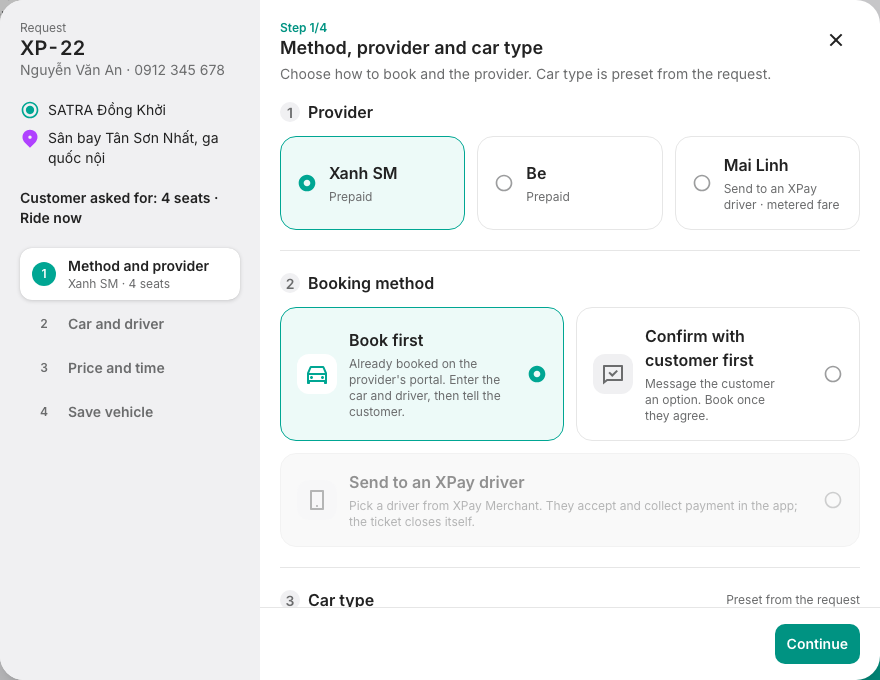
-
Provider — pick one. Providers that don't run a car big enough are greyed out ("No cars with N+ seats"). The Mai Linh card sends the ride to an XPay driver instead (method C).
-
Booking method:
Method Use it when A. Book first You've already booked the car on the provider's portal. You enter the car and driver, then tell the customer. B. Confirm with customer first You want the customer to agree to an option before you book. Only while the ticket is Awaiting car. C. Send to an XPay driver Picked with the Mai Linh card. The driver accepts and collects payment in the XPay app; the ticket closes itself. -
Car type (methods A and B) — preset from the request. You can't pick a smaller car than requested. You can send a bigger one when none of the right size is free — the wizard reminds you: "Customer asked for 4 seats; sending 7. Let the customer know."
Click Continue.
A. Book first
Step 2 — Car and driver. Enter the details from the provider's app:
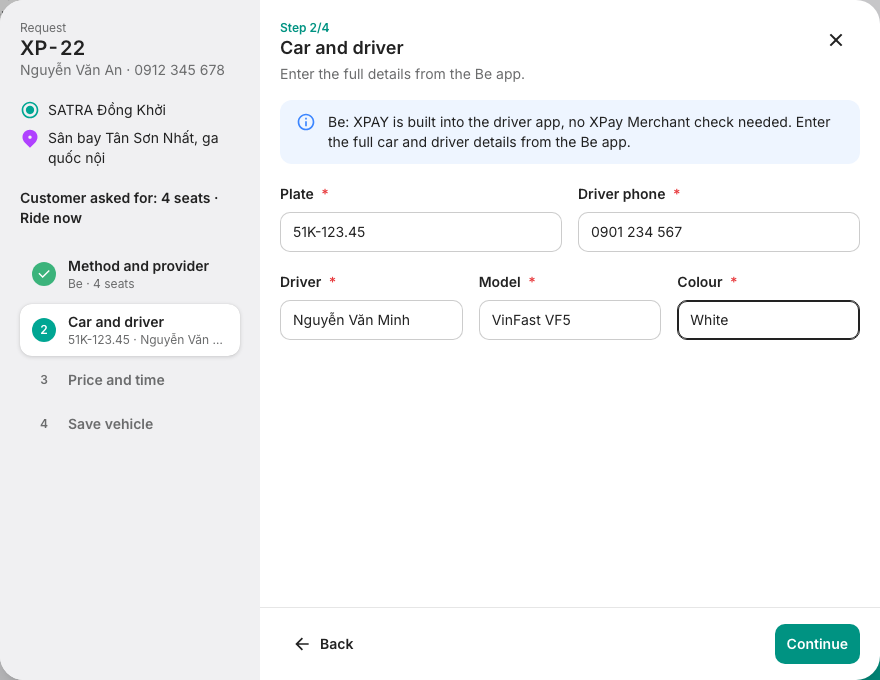
| Field | Required |
|---|---|
| Plate | Always |
| Driver (full name) | Always |
| Driver phone, Model, Colour | Required for prepaid providers |
For a metered provider, the portal checks the plate (or driver phone) against the provider's XPay Merchant fleet as you type. If the driver is found, name, phone and model fill in. You can only continue with a registered driver — or click Pick from the XPay driver list to send an offer instead. Prepaid providers (XPAY built into their driver app) skip this check.
Step 3 — Price and time.
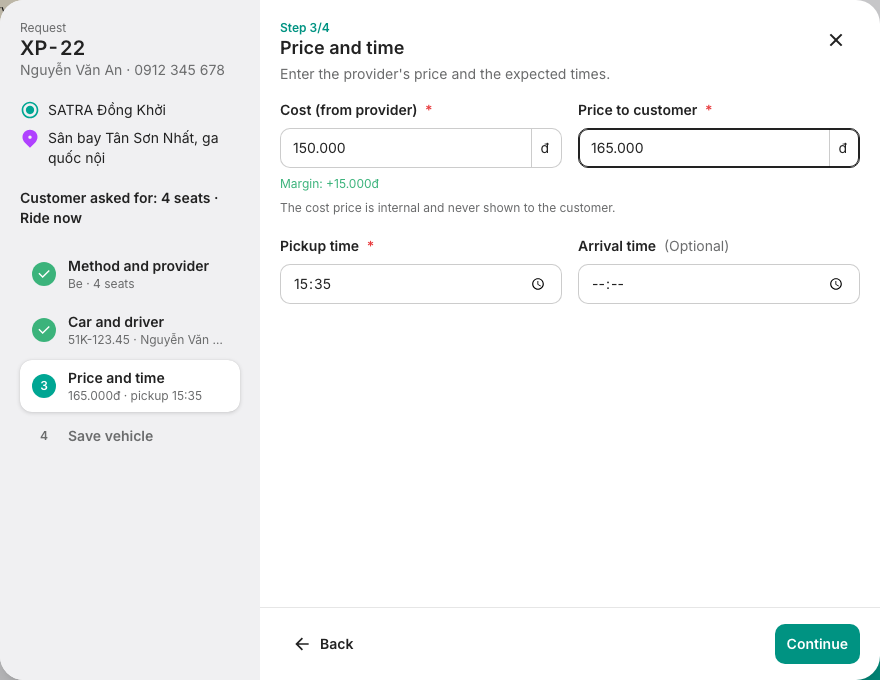
| Field | Notes |
|---|---|
| Cost (from provider) | Prepaid providers only, required. Internal — never shown to the customer. |
| Price to customer | Required for prepaid providers. For metered providers it's an optional Estimated price. |
| Pickup time | Required. Defaults to 10 minutes from now. |
| Arrival time | Optional. Can't be before pickup. |
For prepaid providers the margin is shown under the prices; a red line warns when the price is below cost.
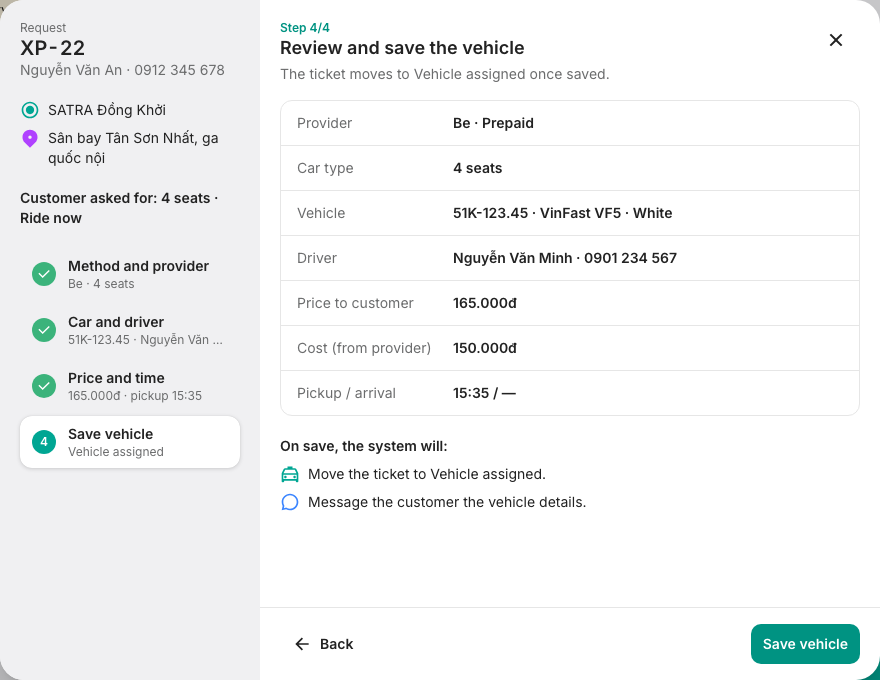
Step 4 — Save vehicle. Review and click Save vehicle. The ticket moves to Vehicle assigned and the customer is messaged the vehicle details — you'll see "XP-…: vehicle saved, details sent to the customer".
B. Confirm with customer first
Step 2 — Proposal. No booking yet — you book once the customer agrees.
| Field | Notes |
|---|---|
| Cost (from provider) | Prepaid providers only, optional, internal |
| Price to customer | Required for prepaid providers (optional estimate for metered) |
| Expected pickup | Required |
| Note for customer | Optional — sent with the option (e.g. No 4-seaters nearby, sending a 7-seater) |
Step 3 — Send option. Click Send option. The customer gets a message with the provider, car, price, pickup time and note — the cost price is never sent. The ticket moves to Awaiting customer.
Then, when the customer answers (by message, or tell you by phone):
| Customer… | Click | Result |
|---|---|---|
| Agrees | Customer accepted → Enter vehicle | Book on the provider's app, then the wizard opens at Car and driver with the provider, seats, prices and pickup time already filled in |
| Wants something else | Customer wants a change | Add an optional reason. The option is dropped and the ticket goes back to Awaiting car. |
C. Send to an XPay driver (Mai Linh)
Step 2 — Driver.
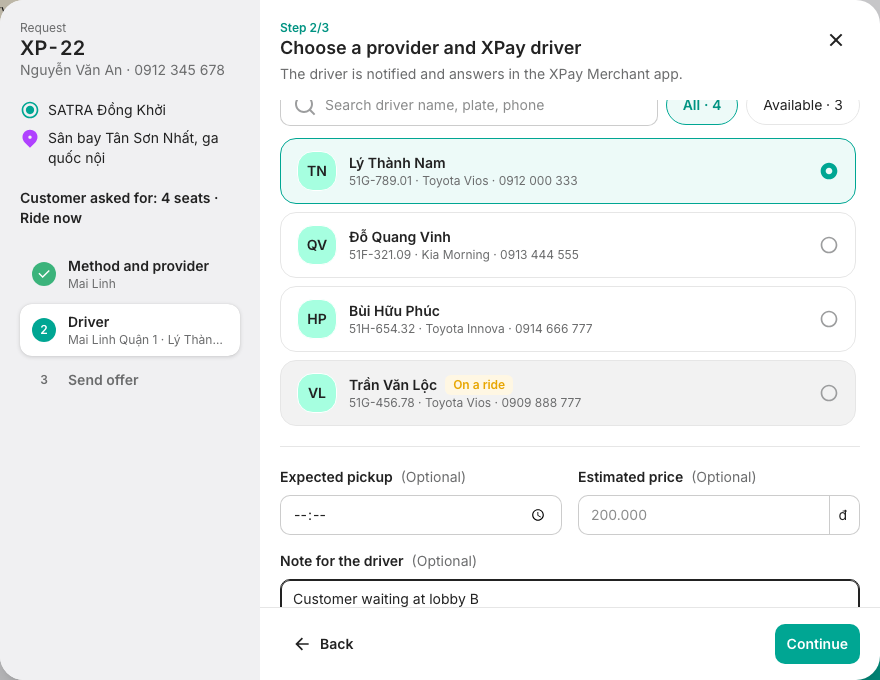
- Provider — pick the Mai Linh branch. Branches with no XPay merchant are greyed out.
- Driver — search by name, plate or phone. Drivers on a ride are marked On a ride; you can still send to them, but pickup may be late. Use Available to hide busy drivers.
- Optional: Expected pickup, Estimated price, Note for the driver.
Step 3 — Send offer. Click Send offer. The driver is notified in the XPay Merchant app and the ticket moves to Awaiting driver. Sending a new offer withdraws any offer still pending with another driver.
While you wait, the Next step box offers Send to another driver, Book manually, Cancel trip and Release ticket. Once the driver accepts, they mark pickup and payment in the XPay app and the ticket updates itself — it closes when the driver has collected payment.
6. Booking through a provider's API (Xanh SM)
When a provider is set up with the Xanh SM API booking method, the system books on the provider's own business account and tracks the trip for you — no need to open the provider's app.
The provider's API doesn't take scheduled rides or rides with no drop-off. For those, book by hand.
Get a quote (read the places back first)
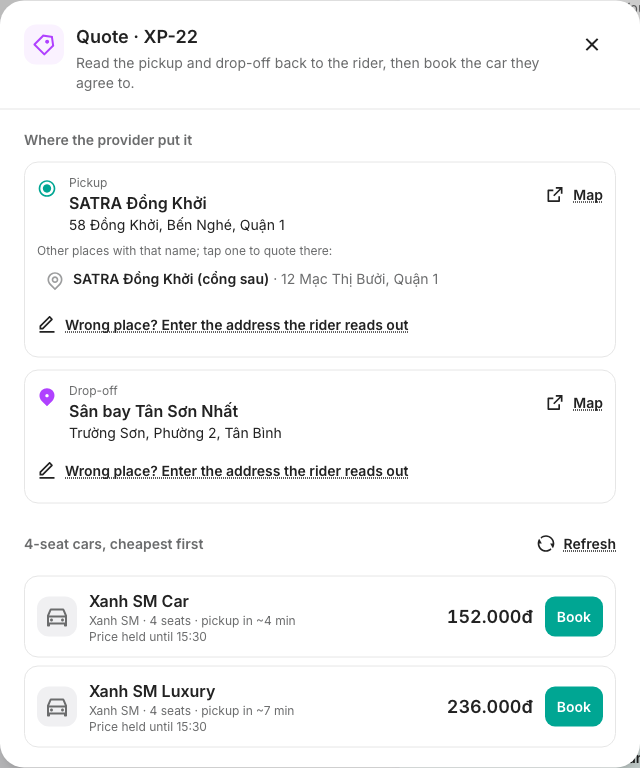
- Click Get a quote.
- Under Where the provider put it, read the pickup and drop-off back to the rider. Use Map to check.
- If a place is wrong:
- tap one of the other places with that name, or
- click Wrong place? Enter the address the rider reads out, type it, and click Quote again.
- Cars are listed cheapest first, with the price, pickup in ~N min, and Price held until a time. Click Refresh for new prices.
- Click Book on the car the rider agrees to.
If the price went up since the quote, you'll see the new price — tell the rider, then book again. If no provider can price the ride, click Book manually.
Book via provider (no quote)
Click Book via Xanh SM (or Book via provider API when there are several). The system picks the smallest car that fits and fills in the car once there's a driver. If the ticket has no exact address, the provider searches by the pickup name — use Get a quote to read the place back first.
While the order is out
| Next step box says | What to do |
|---|---|
| Booked via Xanh SM, waiting for a driver | Nothing — the car fills in by itself. To fix an address, click Cancel the Xanh SM order, give a reason, and the ticket goes back to waiting for a car. |
| Check the order on the Xanh SM app (unclear whether the order was created) | Look in the provider's app. If the order is there, click Order found, enter the car and enter its car. If not, click No order, drop the request. The system won't switch providers by itself, so two cars don't come. |
| Xanh SM finished the trip | Click Complete trip and enter the final fare (§7). |
| Xanh SM cancelled with the rider on board | Complete at the real price, or without charging. |
The provider reports pickup itself, so there's no Driver picked up button for these rides.
A red banner "Couldn't cancel order … on Xanh SM" means the cancel never reached the provider — the car may still come. Cancel it by hand on the Xanh SM app.
7. During the ride and completing it
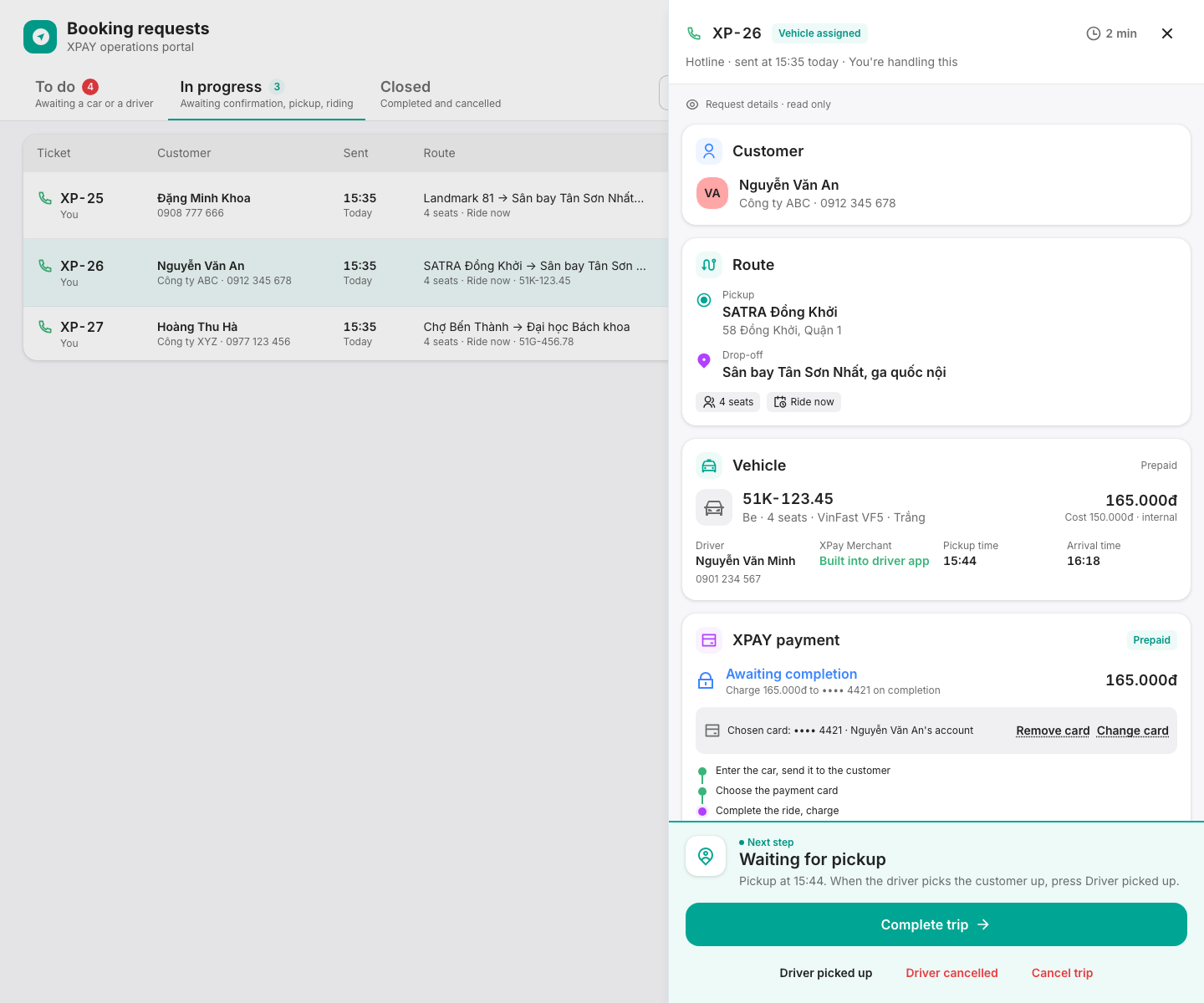
Waiting for pickup (Vehicle assigned)
| Button | Use it when |
|---|---|
| Driver picked up | The driver picked the customer up. The ticket moves to Riding. (Not shown for rides booked via a provider's API — the provider reports pickup itself. An XPay driver marks pickup in the XPay app, which updates the ticket.) |
| Driver cancelled | The driver dropped the ride. Enter a reason. The ticket goes back to To do so you can book another car; the old car stays in the history. |
| Complete trip / Pay on behalf | The ride is over (see below) |
| Cancel trip | See §8 |
Customer is on board (Riding)
Click Complete trip (or Pay on behalf) when the ride ends.
Which way does a ride close?
Pay on behalf appears instead of Complete trip for metered rides driven by an XPay driver, or when there's no amount to charge yet.
Complete ride (charge the card)
Shown for every prepaid ride, every ride that has a payment card, and every App booking.
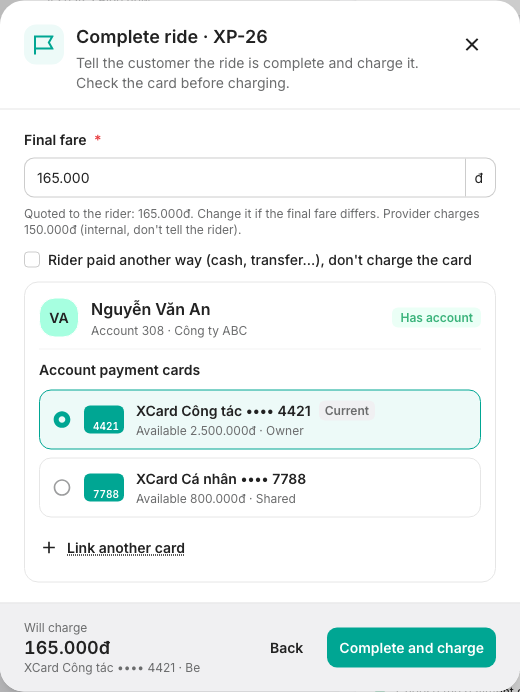
- Final fare — prefilled with the price quoted to the rider. Change it if the final fare differs. For cars booked via a provider API there's no quoted price, so type the fare. The provider's own price is shown for reference — don't tell the rider.
- Payment card — check the card. You can switch to another card; the dialog says "Switching from •••• 1111 to •••• 2222: the new card is put on the ride, then charged."
- Click Complete and charge.
Pay on behalf
For when the driver or rider can't finish paying on the app.
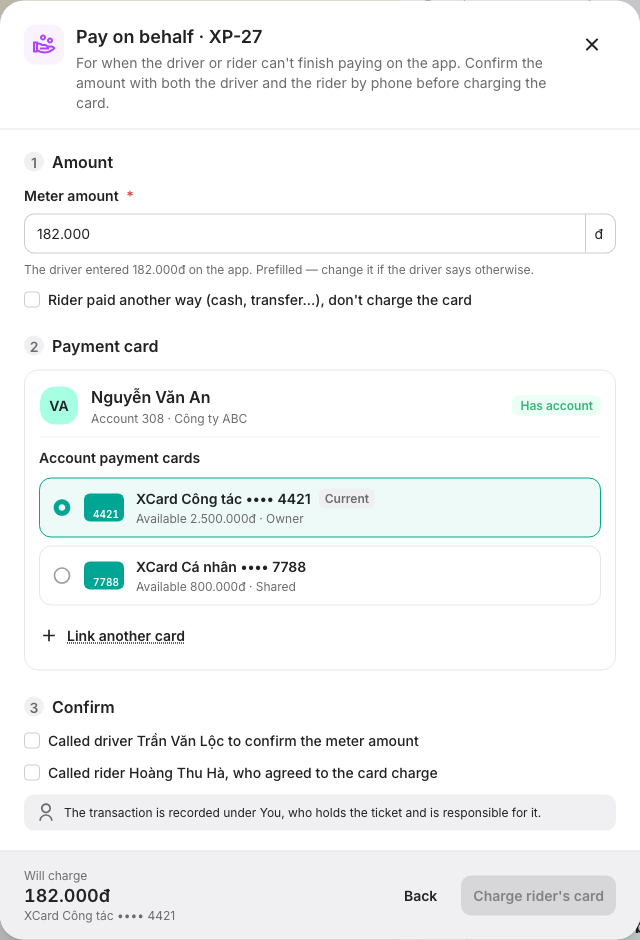
- Amount → Meter amount — prefilled with what the driver entered on the app, if anything. Otherwise call the driver for the meter amount.
- Payment card — check or change the card.
- Confirm — tick both after calling them:
- Called driver … to confirm the meter amount
- Called rider …, who agreed to the card charge
- Click Charge rider's card.
The transaction is recorded under the operator holding the ticket.
When the rider paid another way
In either dialog, tick "Rider paid another way (cash, transfer…), don't charge the card", enter Why the card isn't charged, and click Complete without charging. The ticket closes as Closed uncharged.
If the card is declined
"Card declined: … The ticket stays open." Pick or link another card and try again, or — if the rider paid another way — complete without charging.
| Message | Meaning |
|---|---|
| not enough balance on the card | Card balance too low |
| the card is blocked | Card can't be used |
| not enough balance in the Xperise wallet | The company wallet is short |
| The rider has no active card to charge. | Pick or link another card, or complete without charging |
| The rider has several cards. Pick the one to charge. | Choose a card in the dialog |
| The chosen card is no longer available to this rider. | Pick another card |
| Card charging isn't available. Tell the tech team. | System issue — escalate |
8. Cancelling and no car
| Action | Where | What you enter | Result |
|---|---|---|---|
| Cancel trip | Next step box | Reason (required): Customer cancelled · Driver cancelled, customer won't rebook · No car available · Duplicate ticket · Other. Optional Note and Cancellation fee. | Ticket Cancelled |
| No car available | Next step box, while booking | Message to customer (required) | Ticket closed. Nothing is sent automatically — tell the customer yourself. |
| Driver cancelled | Waiting for pickup | Reason (required) | Back to To do to book another car |
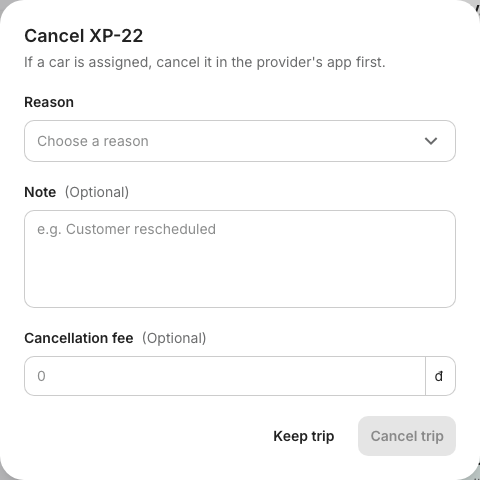
If the ticket already has a car, cancel it in the provider's app first. The cancel dialog reminds you: "This ticket has a car. Remember to cancel it in the provider's app."
Click Keep trip to back out without cancelling.
9. Payment cards
The XPAY payment section
| State | Meaning |
|---|---|
| No car yet | Depends on the provider: prepaid charges the card on completion, metered has the driver enter the meter fare |
| Awaiting completion | Prepaid ride with a card — "Nothing charged yet. Complete the ride to check the card and charge." |
| No card | Choose or link a card before completing the ride |
| Awaiting the meter fare | The driver enters the meter fare in the XPAY app at the end of the ride |
| No payment request | The driver isn't in XPay Merchant, so no payment request could be created |
| Paid | Charged to the card, or collected by the driver in the XPAY app |
| Closed uncharged | Closed without charging (with the reason, if one was given) |
| Request cancelled | Ride cancelled |
While the ticket is open (and not held by someone else) you can Add card, Change card, or Remove card. Removing asks first: "Without a card the ride closes uncharged."
For App bookings with no card named, the rider's only active card in the app is charged. On an App booking, only the booker's own card can be changed.
Choosing or adding a card
The portal looks up the phone on the ticket:
| Badge on the account | Meaning |
|---|---|
| Has account | Normal account |
| Left the company | The rider is no longer staff at that company — take a card by number + PIN |
| Company not verified | The company system can't be reached right now — no card can be linked |
Cards that are Inactive, Blocked or Expired can't be picked. Owner / Shared shows whether the card is the rider's own or shared with them.
Link a card (account found) opens Link a card to the account with two tabs:
- Company cards — cards of the rider's company, most available balance first. Search by card name or last 4 digits, pick one, and click Link card. No PIN needed.
- Card number + PIN — the card number and PIN the caller reads out.
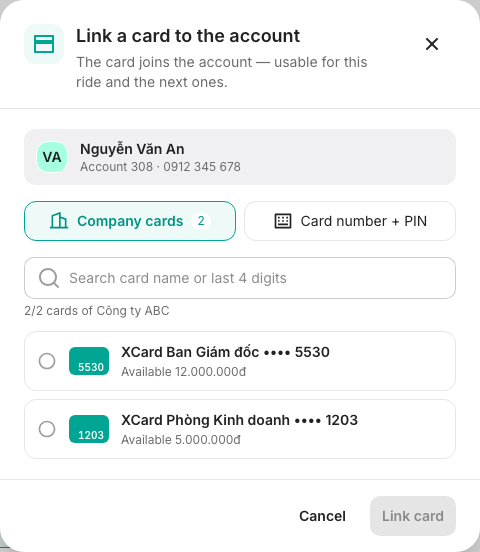
The linked card joins the account — usable for this ride and the next ones.
Enter card (no account) takes the card number and PIN for this ride only.
The caller reads the 6-digit PIN out over the phone. It's checked once and never stored — a retry needs it again. 3 wrong PINs lock the card for 15 minutes. A card with no printed PIN can't be used by number + PIN.
| Message | What to do |
|---|---|
| Wrong card number or PIN. | Ask the caller to read both out again |
| Wrong PIN 3 times. The card is locked for 15 minutes. | Use another card, or wait |
| The card is blocked or expired. | Use another card |
| The card isn't from the rider's company. | Pick another card, or take the card number + PIN |
| Invalid card number — check the digits. | The number fails the check-digit test — a typo |
10. Common errors
| Message | Meaning |
|---|---|
| name is handling this ticket. | Someone else claimed it first |
| The ticket just changed state. Reloaded. | Someone (or the system) changed it while you were working — check the panel again |
| This provider is inactive. Pick another. | The provider was switched off |
| Can't send a smaller car than requested. | Pick the requested size or bigger |
| This driver isn't in the provider's fleet. | Pick a driver from that provider's XPay Merchant list |
| Too many requests. Wait a moment and retry. | Slow down |
| Connection lost. Check the network and retry. | Network problem |
Quick reference
| I want to… | Do this |
|---|---|
| Take a phone booking | New hotline ticket → §3 |
| Start working on a ticket | Claim → §4 |
| Book a car I already reserved | Book → Book first → §5 |
| Let the customer choose first | Book → Confirm with customer first |
| Send the ride to a Mai Linh XPay driver | Choose XPay driver |
| Let Xanh SM book it | Get a quote or Book via Xanh SM → §6 |
| Finish and charge a ride | Complete trip or Pay on behalf → §7 |
| Close without charging | Tick Rider paid another way in the completion dialog |
| Change the payment card | XPAY payment → Change card → §9 |
| Hand a ticket to a colleague | Release ticket |
| Cancel | Cancel trip or No car available → §8 |
Related
- Managing Providers — add and configure the providers you book with.
- Linking a Card from Zalo — how riders link a card to their account.
- XPAY Merchant — Driver's Guide — the app XPay drivers use to take payment.