Managing Providers
This page is for CS operators who set up the providers — the taxi and car companies (or their branches) that rides are booked with in the CS Dispatch Portal. You need the same system admin account you use for the portal.
A provider decides how a ride is booked and paid: whether the price is known up front, whether the system books it for you through an API, which car sizes it runs, and where.
1. Opening the provider list
On Booking requests, click Providers (top right). The panel shows:
- N providers · N active at the top.
- A search box — name, code, contact, or merchant.
- Filters: All, Active, Inactive.
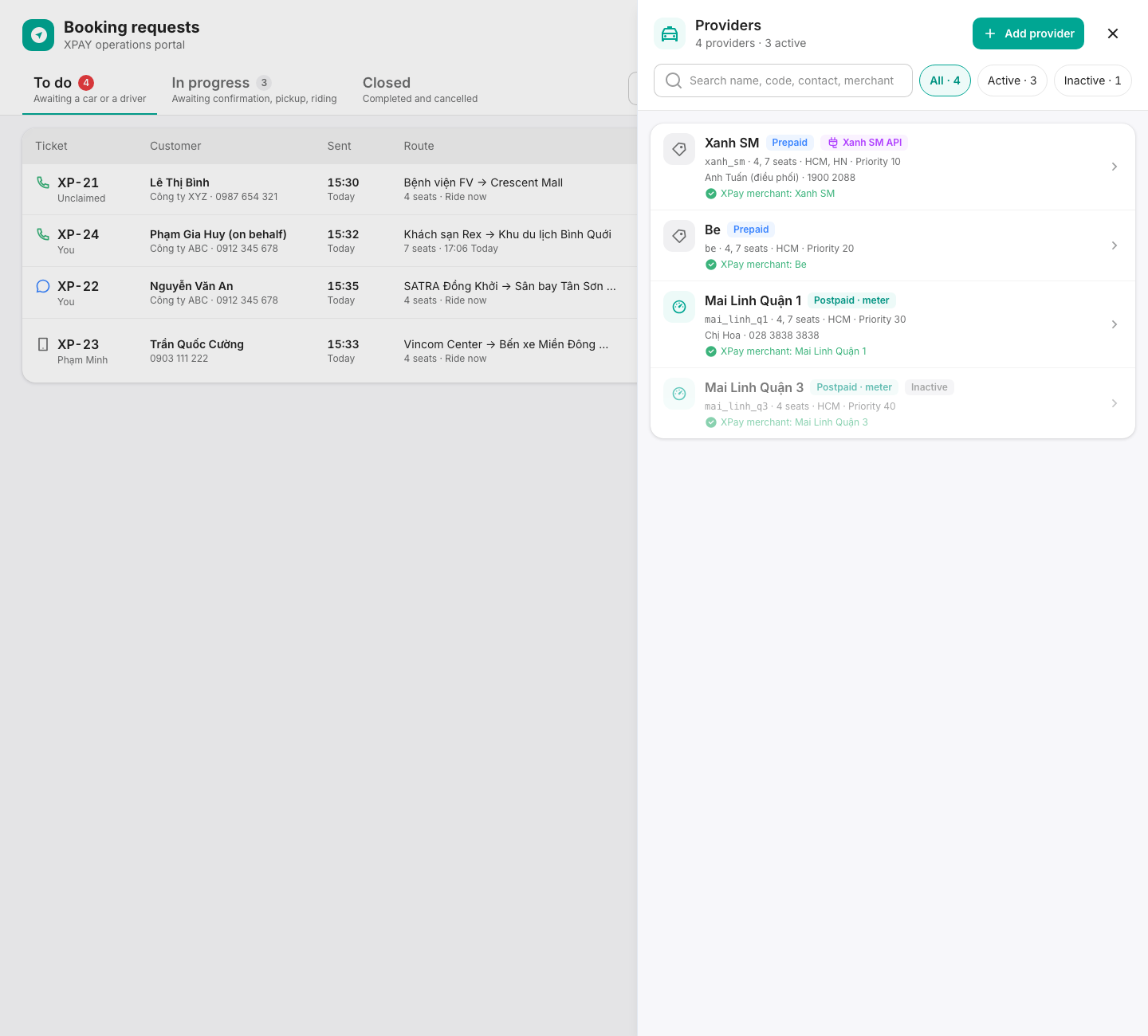
Each provider row shows its pricing (Postpaid · meter or Prepaid), a Xanh SM API badge when it books through the API, Inactive when switched off, the contact, and its linked XPay merchant — or "No XPay merchant yet; link one before editing".
Click a row to edit it, or Add provider to create one.
2. Adding a provider
XPay merchant (required, pick it first)
Every provider is linked to an XPay merchant:
- For Postpaid · meter providers, the merchant's sub-accounts are the drivers — used to offer rides to XPay drivers and to check drivers when booking.
- For Prepaid providers, rides CS completes are paid to this merchant.
Search by name, email or phone, or paste a merchant ID. Suspended merchants are marked Suspended. Picking the merchant fills in the provider Name and Code — both stay editable. If the merchant is already the driver fleet of another provider, the form tells you which one.
Provider
| Field | Rules |
|---|---|
| Name | Required (e.g. Mai Linh District 1) |
| Code | Required. 2–64 characters: lowercase letters, digits, _ or -, starting with a letter or digit. Must be unique. Can't change after creation. |
Pricing
| Option | Meaning |
|---|---|
| Postpaid · meter | Taxi meter after the trip (Mai Linh): no price at booking; rides can go to XPay drivers. This is the default. |
| Prepaid | Quotes up front (Xanh SM, Be): enter cost and sell price when booking. |
How rides are booked
| Option | Meaning |
|---|---|
| Manual | CS books on the provider's app or by phone, then enters the car. This is the default. |
| Xanh SM API | The system books on the Xanh SM business account and tracks the trip itself. See §4. |
Service scope
| Field | Rules |
|---|---|
| Vehicle sizes | Pick from 4, 6, 7, 9, 16, 29, 45 seats. None selected = any size. |
| Service areas | Type an area code and press Enter (e.g. hcm). Empty = every area. Codes other providers already use are offered under In use: — tap one to add it. |
Contact
Contact person, Contact phone, Contact email — all optional, checked for a valid format when filled in.
Operation
| Field | Rules |
|---|---|
| Priority | A whole number from 0 to 10000 (default 100). Lower is tried first. |
| Status | Active or Inactive. Inactive providers don't show up when booking. |
| Internal notes | Optional (e.g. Contract HD-2026-014, call 30 min ahead) |
Click Create provider. An active provider shows up right away in the booking wizard.
3. Editing a provider
Click the provider in the list, change what you need, and click Save changes.
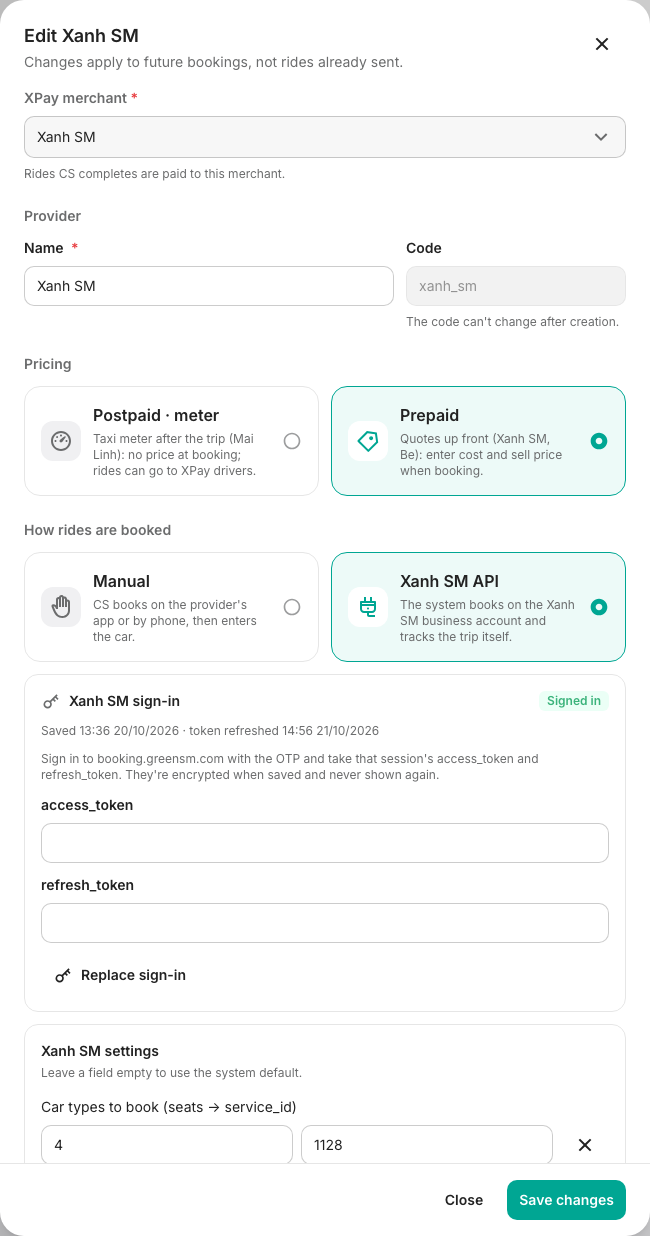
- Changes apply to future bookings, not rides already sent.
- The Code can't be changed.
- Changing Pricing shows a warning: it changes the booking steps for this provider from now on.
- A provider created before the merchant link existed must have a merchant picked before any change can be saved.
4. Setting up the Xanh SM API
A Xanh SM API provider must have a working sign-in before it can book.
- Create the provider as Inactive with How rides are booked = Xanh SM API. (Creating it as Active is refused.)
- Reopen the provider from the list. The Xanh SM sign-in box now shows its state: Not signed in, Signed in, or Session lost.
- Sign in to
booking.greensm.comwith the OTP and take that session's access_token and refresh_token. - Paste both into the form and click Save sign-in (Replace sign-in if one exists). The tokens are encrypted when saved and never shown again.
- Set Status = Active and click Save changes.
If Xanh SM drops the session, the box shows Session lost with Xanh SM's reason — sign in again and replace the tokens.
Xanh SM settings
Leave a field empty to use the system default.
| Setting | Meaning | Default |
|---|---|---|
| Car types to book (seats → service_id) | Which Xanh SM service to book for each seat count, e.g. 4 → 1128, 6 → 2274. One row per seat count. | Every car service, never a motorbike |
| Driver wait limit (seconds) | No driver by then: the order is cancelled on Xanh SM | 300 |
| Max trip distance (km) | Pickup and drop-off farther apart (straight line) means the address was misread | 100 |
| Language | vi or en | vi on a new provider |
| Add trip insurance | Tick to add trip insurance | Ticked on a new provider |
| Address search centre per area | Area code, latitude, longitude — used when the ticket has no coordinates | hcm and hn |
5. Common messages
| Message | What to do |
|---|---|
| Pick the provider's XPay merchant. | Every provider needs a merchant |
| Another provider already uses this code. | Choose another code |
| A Xanh SM API provider must be created inactive and switched on after signing in. | Set Status = Inactive to create it |
| Save the Xanh SM sign-in before switching the provider to its API. | Save the tokens first (§4) |
| The merchant is … ; pick an active one. | The merchant is suspended or inactive |
| The server has no sign-in encryption key. Tell the tech team. | System issue — escalate |
Related
- CS Dispatch Portal — Operator Guide — how providers are used when booking a ride.
- Add a Merchant — how the XPay merchant a provider links to is onboarded.