XPAY Card Kit — Operator Guide
For staff who personalize physical MIFARE Classic 1K cards for customers. For the system-level process this app plugs into, see Physical Card Production & Issuance.
The app is Android only. Button labels and messages quoted below match the app screen exactly.
Where this app sits in the card's life
You are one step in a longer chain. Knowing the steps either side of you explains most of the errors in section 6:
| Before you | You | After you |
|---|---|---|
| Cards are printed by the manufacturer, then their chip UIDs are registered in the back office | You write the keys and card data onto the chip | A corporate admin turns the card into a real card, then the cardholder activates it |
Two consequences worth remembering:
- A card whose chip was never registered cannot be written — the app says "This chip is not registered with the back office." That is a stock/batch problem, not something you can fix by tapping again.
- You are not the last step. Finishing a card here leaves it unusable until someone else activates it, which is why "WRITTEN" is not the same as "working".
1. Before you start
1.1. Check the handset
| Requirement | How to check |
|---|---|
| Android handset with NFC, and NFC switched on | System settings → NFC |
| NFC controller supports MIFARE Classic (Crypto1) | Open the app → if there is no red banner about com.nxp.mifare, the handset is fine |
| Signed in with an operator account | See section 2 |
About handsets: Only handsets with an NXP NFC controller can write MIFARE Classic. Most Samsung handsets work; Google Pixel and many Xiaomi models do not. Test the exact model before deploying it. This is a hardware limitation with no software workaround.
1.2. Check the build (CRITICAL)
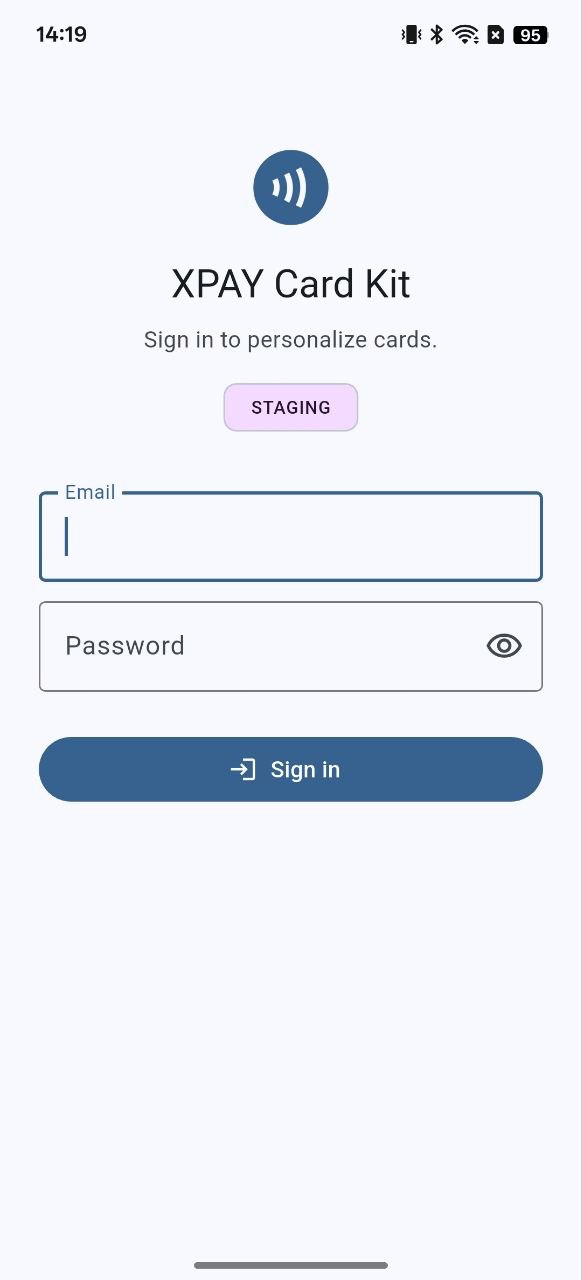
A test build announces itself in two places — a pink STAGING chip under the app name on the
sign-in screen, and · STAGING after the title on every screen afterwards:
| Where | Test build | Production build |
|---|---|---|
| Sign-in screen | A pink STAGING chip under "Sign in to personalize cards." | No chip at all |
| Title bar, every other screen | XPAY Card Kit · STAGING | XPAY Card Kit (nothing after it) |
On narrow screens the title truncates to XPAY Card Kit · STAGI… — that is still a staging
build. Judge it by "is there anything after the name", not by the full word.
If you see STAGING and you are about to write a customer card, stop and contact technical support.
1.3. Prepare the stock
- Blank cards of the correct type: MIFARE Classic 1K, 16 sectors.
- The app only writes 1K. 4K, Mini, Classic Plus and Classic Pro are all refused.
- For the QR flow: the card must have a QR code printed on its surface.
2. Sign in
- Open the app. The sign-in screen reads "Sign in to personalize cards."
- Enter the Email (not a phone number) and Password of your operator account. The eye icon in the password field reveals what you typed — useful for a long password, but check nobody is looking over your shoulder first.
- Press "Sign in".
Before you type anything, check the build badge on this screen — see section 1.2.
Notes:
- The account is an admin account issued by your administrator. Avoid sharing one account between several people where possible.
- A staging account will not sign in to the production build, and vice versa.
- The Sign out button (top right) is disabled while a card is mid-run. Finish or close the current card before signing out.
If sign-in fails, the app tells you which of these it was — each needs a different response:
| Message on screen | What it means | What to do |
|---|---|---|
| "Incorrect email or password." | Wrong credentials | Retype them. Check you are using an email, not a phone number |
| "Incorrect email or password. N attempts left before the account locks." | Same, but the back office is now counting down | Stop guessing. Get the password confirmed before trying again — the next attempts can lock you out |
| "This account is locked. Ask the back office to unlock it." | Too many failed attempts | You cannot fix this on the handset. Ask the back office to unlock it |
| "This account is not authorised to use this app. Ask the back office for admin access." | The password was correct, but the account lacks admin rights | Ask for admin access. Retyping the password will not help |
| "This account still has its default password. Change it in the back office, then sign in here." | A never-used account | Change the password in the back office first |
| "This account needs two-factor sign-in, which this handheld does not support. Use an account without it." | The account asks for an extra verification code this app cannot handle | Use a different operator account |
| "Could not reach the sign-in service: …" | A network problem — not a password problem | Check the handset's connection and retry |
| "Could not sign in. Try again." | The back office refused for a reason it did not name | Retry once; if it persists, contact technical support |
Three of these — not authorised, default password, and 2FA — mean your password was accepted. Retyping it just wastes attempts and can push you toward a lockout.
3. Choose how the card is identified / Entry mode
Directly above the four steps there is a toggle with two modes. On screen the two buttons are labelled "Tap card" and "Scan QR":
| Button on screen | Mode | When to use it | Card taps |
|---|---|---|---|
| "Tap card" (default) | Tap first | Blank cards with no QR, or the normal workflow | 2 taps |
| "Scan QR" | Scan first | Cards with a printed QR, faster handling, card can stay in its sleeve | 1 tap |
The toggle sits at the very top, above any banners and above the four-step tracker:
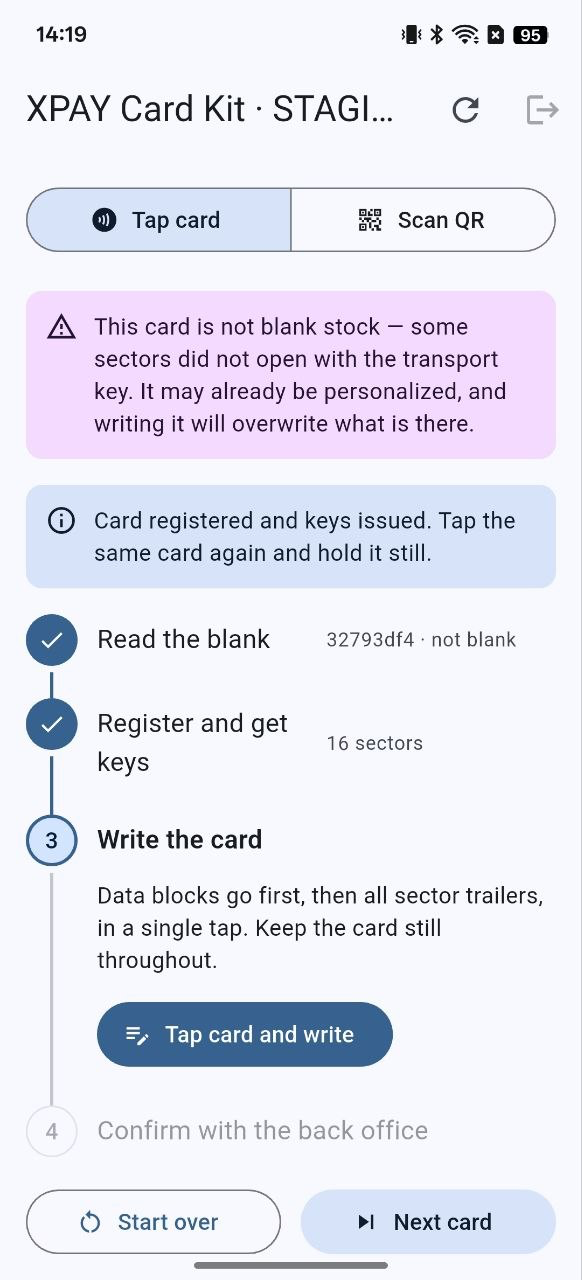
If you have already pressed "Register & get keys" for a card and then switch mode, the app shows the "Abandon this card?" dialog. Switching clears the card from the screen but the job stays open in the back office. If you are setting that card aside, press "Close as LOCKED" first, then switch.
4. Flow A — Tap first (the "Tap card" button)
Step 1 — "Read the blank"
- Press "Read card".
- Hold the card flat against the back of the handset and keep it still.
- The app shows: Chip UID, Type, Sectors.
Expected result: Type = CLASSIC, Sectors = 16.
If the banner "This card is not blank stock — some sectors did not open with the transport key…" appears: this card is not blank — some of its sectors no longer accept the factory transport key, which means it has been written before. Continuing will overwrite the existing data. Only proceed if you are certain this is a card meant to be re-personalized.
Step 2 — "Register and get keys"
- Press "Register & get keys".
- The app calls the back office, binds this chip to its card record, and receives the key material.
- The screen shows: Trailers (sector count), Data blocks, Perso state, Stock.
After this step the card is recorded in the back office. If you abandon it, you must close the job with "Close as LOCKED".
Step 3 — "Write the card"
The step-3 panel says what is about to happen: everything is written in one single tap, so the card has to stay put for the whole thing.
- Press "Tap card and write".
- The "Write the card?" dialog appears — read it — press "Write" (or "Cancel" to back out; cancelling writes nothing and leaves the job open).
- Hold the same card you read in step 1 against the handset and keep it completely still until the write finishes.
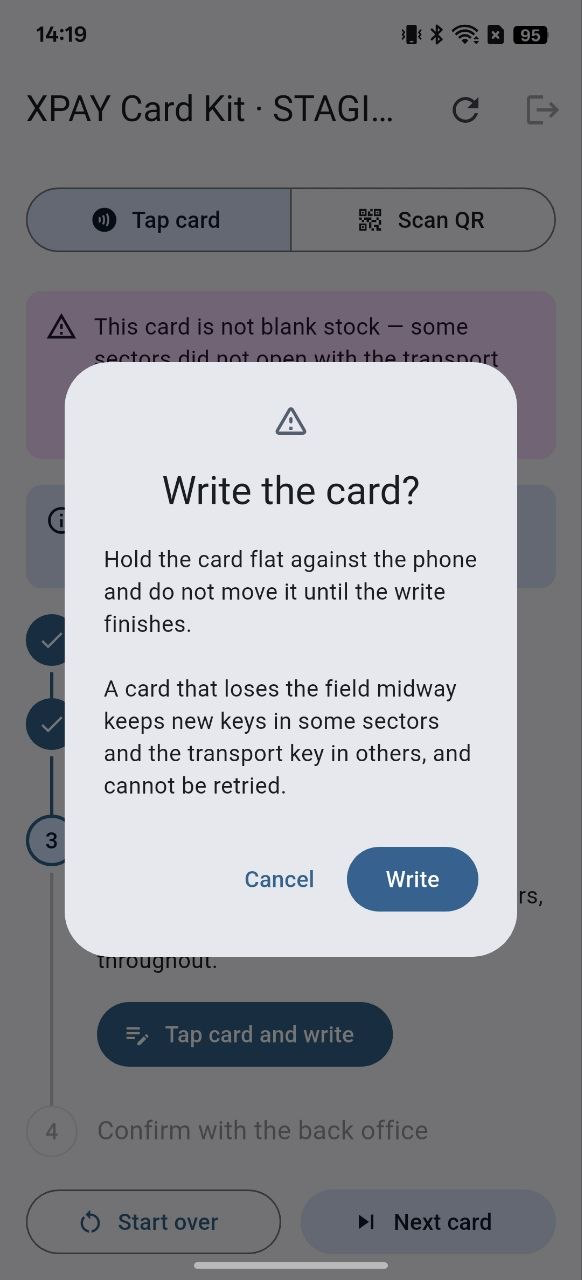
The dialog states it plainly: "A card that loses the field midway keeps new keys in some sectors and the transport key in others, and cannot be retried." That card is permanently ruined. Read the dialog every time rather than dismissing it out of habit.
When it finishes, the step-3 row shows how many blocks were written — 20/20 on a Classic 1K — and a
blue banner appears: "Written. Confirm with the back office to close the job." What matters is that
the two numbers match; a card is only fully written when they do.
Step 4 — "Confirm with the back office"
| Situation | Button shown | What to do |
|---|---|---|
Complete write (e.g. 20/20) | "Confirm as WRITTEN" | Press it to finish the card |
Partial write (e.g. 12/20) | "Confirm as LOCKED" | Press it to close the card, then set that card aside |
The step-4 panel restates what the button does before you press it: "Records the write as WRITTEN and finishes the card. A corporate admin activates it from the back office."
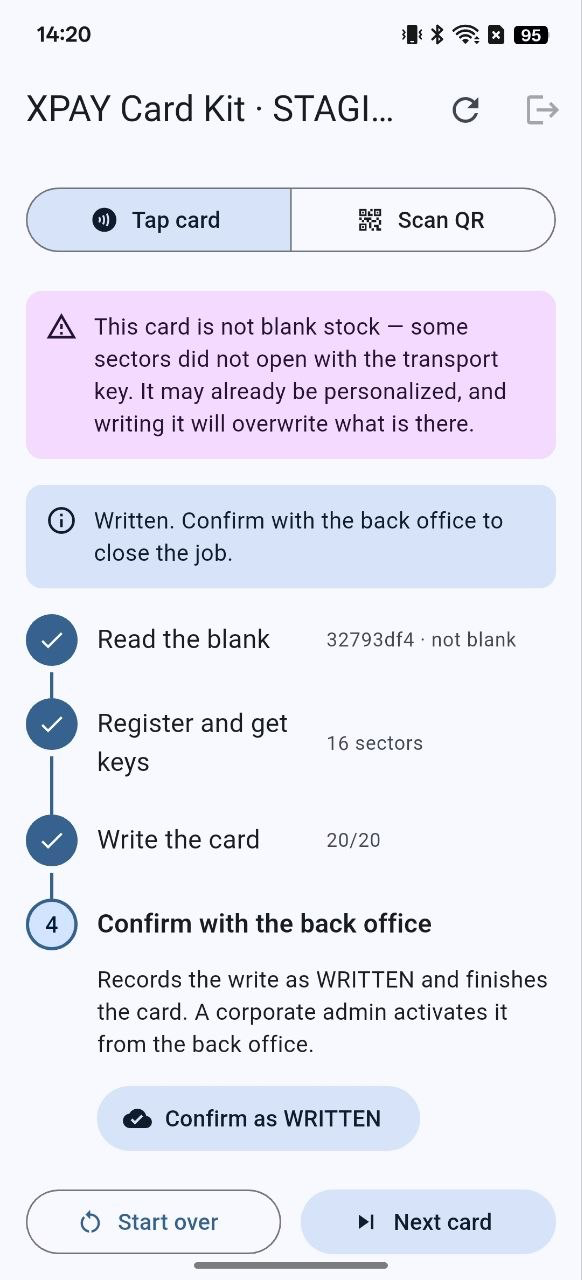
On success the app shows: "Card personalized and confirmed. A corporate admin activates it from the back office."
A card in WRITTEN state is not yet active. Activation is done separately by a corporate admin in the back office, not in this app.
In this app, "Confirm as LOCKED" / "Close as LOCKED" is how you close a card you are not completing — a partial write, or a card you registered and then set aside. Be aware that the back-office spec uses LOCKED for a different situation (a perso run that finished and sealed the card), so if you also read Physical Card Production & Issuance the same word appears with a different meaning. Follow this guide for what to press; if a card's real status matters, ask technical support rather than inferring it from the word.
Moving to the next card
Press "Next card" to clear the screen and start a new card.
5. Flow B — Scan first (the "Scan QR" button)
Steps 2 and 4 are identical to Flow A. Only steps 1 and 3 differ.
Step 1 — "Scan the card QR"
- Press "Scan QR" — the camera opens.
- Line the QR printed on the card up inside the square frame.
- In low light, press the torch icon at the top right.
- Once scanned, the app shows the PAN token.
If the QR is scratched, faded, or over-laminated and will not scan: Press "Enter the PAN token by hand" below the camera view, type or paste the token printed on the card, then press "Use this token". (A handset with a hardware barcode engine can fire straight into this field.)
If the camera will not open: the manual field below is still usable, or switch to Tap first mode with the "Tap card" button.
At this step the card is not tapped at all, so it can stay in its sleeve.
Step 2 — "Register and get keys"
Same as Flow A. After pressing it, the app also shows a "Bound chip" line — that is the chip the key material was issued for. Only that card can be written.
Step 3 — "Write the card"
- Press "Tap card and write" — confirm with "Write".
- Hold the card against the handset and keep it still.
- This single tap does three things at once: reads the chip, checks it is the chip that was registered, then writes it.
If you pick up the wrong card: the app refuses to write and reports "A different card is on the reader…". No card is written incorrectly — just fetch the right card and tap again. The job stays open.
Step 4 — "Confirm"
Same as Flow A.
6. Troubleshooting
6.1. What the app tells you, and what to do
The app writes its errors in plain sentences — find the one you are looking at below. Every message falls into one of three actions:
| What it means for the card | |
|---|---|
| Try again | Nothing is wrong with the card. Retry and carry on. |
| Wrong card | You are holding the wrong piece of plastic. Nothing was written — fetch the right one. |
| Set it aside | Stop using this card. Close the job and put it in the reject pile. |
Most messages name the card or the problem — which card the app expected, or what kind of card you actually tapped. That detail is usually the whole answer.
Reading and tapping the card
| Message on screen | Action | What to do |
|---|---|---|
| "No card arrived. Hold it flat against the phone and try again." | The app waits 15 seconds. Put the handset flat on the table, card on top, and press again | |
| "NFC is unavailable…" | Switch NFC on in the handset's system settings | |
| "This card is MIFARE Classic with 40 sectors" (or another size) | You picked up the wrong card — a 4K or Mini. Get a 1K blank. The message always names what you actually tapped | |
| "Not a MIFARE Classic card, or this handset cannot do Crypto1." | Either the wrong card, or the wrong handset. Try a known-good 1K blank first; if that also fails, the handset is the problem | |
| "A different card is on the reader (…)" | The app prints both cards' numbers. Fetch the one the keys belong to and tap again. Nothing was written | |
| "Authentication failed — wrong key for that sector." | Stop tapping it. Contact technical support |
Registering and getting keys
| Message on screen | Action | What to do |
|---|---|---|
| "This chip is not registered with the back office. Ask them to raise a card record for it, then read the card again." | Ask the back office to add this card, then press "Re-read". Tapping again on its own never fixes it. If a whole batch does this, report the batch | |
| "This chip is already bound to another card. Set the plastic aside — do not retry." | Exactly as it says. Do not tap it again | |
| "The back office issued keys for … but the card in hand is …" | Fetch the card whose number the app names | |
| "The keys name sector … but this card reports only … sectors" | Wrong size of card. Get a 1K blank | |
| "Scan the QR printed on the card first." / "…register it first…" | The app does not know which card this is yet. Do step 1 | |
| "No credential is open for this card — prepare it first, or there is nothing to close." | There is nothing to close. Press "Next card" |
After the write
The app checks the card after writing it and will not confirm one that did not come out right. That is a safety net working as intended — but it does mean some cards have to be set aside.
| Message on screen | Action | What to do |
|---|---|---|
| "Only N of M blocks were written…" | ⛔ | A partial write. Follow section 6.3 exactly |
| "The card could not be read back after the write…" | ⛔ | You may write it once more. If it fails again, close it as LOCKED and set it aside |
| "The card reads back a different … than the back office issued." | ⛔ | Set it aside and do not retry. Report this one — technical support needs to know |
Sign-in and connection
| Message on screen | Action | What to do |
|---|---|---|
| "This job is already closed — it was confirmed, or a newer one superseded it." | 🔁 | Somebody already finished this card, or a newer job replaced yours. Press "Next card" |
| "The session has expired. Sign in again." | 🔁 | Sign in again. Finish the card in hand first if you can |
| "Could not reach the API…" | 🔁 | Check the handset's network and retry. Do not tap the card again while you wait — nothing was written |
Scanning the QR (Scan first only)
| Message on screen | Action | What to do |
|---|---|---|
| "The scan came back empty. Hold the QR flat in the frame and try again." | 🔁 | Flatten the card, steady the frame, use the torch |
| "This QR does not carry a PAN token." | 🔎 | Wrong code — check you are scanning the one printed on the card |
| "The camera is not available. Enter the PAN token by hand below…" | 🔁 | Type the token by hand, or switch to "Tap card" mode |
6.2. Common banners
Banners stack at the top of the screen, above the four steps. Colour tells you how to treat them: red/pink means stop, purple is a warning you may deliberately override, and blue is just progress information.
| Banner | Meaning |
|---|---|
🔴 This device has no NFC hardware. | This handset is unusable. Switch handsets. |
🔴 NFC is switched off… | Switch NFC on in system settings. |
🔴 No com.nxp.mifare feature… | This handset's NFC controller cannot write MIFARE Classic. Switch handsets. |
🔴 This chip is not registered with the back office. Ask them to raise a card record for it, then read the card again. | The back office does not know this piece of plastic. Do exactly what the banner says — ask for a card record to be raised, then re-read. Retapping on its own changes nothing. |
🟣 This card is not blank stock — some sectors did not open with the transport key. It may already be personalized, and writing it will overwrite what is there. | The card already holds data. Writing will overwrite it. |
🔵 Card registered and keys issued. Tap the same card again and hold it still. | Step 2 succeeded. Information only — go to step 3. "The same card" is the point: the keys only fit this one chip. |
🔵 Written. Confirm with the back office to close the job. | The write finished. Information only — go to step 4. The card is not done until you confirm. |
A purple banner stays on screen for the rest of the card, so during a deliberate re-personalization you will keep seeing "not blank" at steps 2, 3 and 4 (visible in the screenshots above). That is expected — it describes how the card arrived, not a fresh problem at each step.
6.3. A write that failed midway (e.g. 12/20)
This is the most serious situation. The app will say: "Only N of M blocks were written. Confirm to close this card as LOCKED, then set it aside." Follow the order exactly:
- Do NOT tap that card again. The card is now half-written, and tapping it again cannot repair it — it only makes the card look completely dead.
- Press "Confirm as LOCKED" to close the job in the back office.
- Put the ruined card in a separate place, mark it clearly, and never mix it back in with blank stock.
- Record: the Chip UID / PAN token, and how many blocks were written.
- Press "Next card" and move on.
Cause: the card was lifted or moved during the write. Prevention: put the handset flat on the table, put the card on the handset, and keep your hand still until the screen says it is done.
6.4. Abandoning a card you already registered
If you pressed "Register & get keys" but decided not to write that card:
- Press "Close as LOCKED" (the red text button at the bottom of the screen).
- Confirm in the "Close this job as LOCKED?" dialog.
- Set that card aside.
This button only appears once the card has been registered and the job is still open.
6.5. Other buttons
| Button | What it does |
|---|---|
| "Start over" / "Next card" | Clears the screen for a new card. Does not close the job in the back office. |
| "Re-read" | Reads the card again at step 1. |
| "Scan again" | Scans a different QR. |
| 🔄 (top right) | Re-checks the NFC state. |
7. Mandatory rules
- Check the app title at the start of every shift. A STAGING badge means these are not real cards.
- Use MIFARE Classic 1K only. Anything else is refused by the app.
- Keep the card completely still during the write. This is the most common cause of ruined cards.
- A failed card must be set aside and closed as LOCKED. Never mix it back in with blank stock.
- Do not sign out while a card is mid-run.
- A written card is not a usable card — a corporate admin has to activate it separately.
- Never retry a failed card on your own. Contact technical support.
8. Glossary
| Term (in the app) | Meaning |
|---|---|
| Operator | The staff member using this app |
| Blank / blank stock | An unwritten card, still carrying the factory transport key |
| Personalize / Perso | Writing card-specific data and keys onto the card |
| Chip UID | The unique identifier of the chip inside the card |
| PAN token | The token printed alongside the QR on the card face |
| Bound chip | The chip the key material was issued for |
| Sector / Trailer / Data block | The memory structure inside the card |
| Transport key | The factory default key on a blank card |
| Keys / key material | The card-specific keys issued by the back office |
| Register and get keys | Step 2 |
| Back office | The card management server |
| WRITTEN | Written successfully — not yet activated |
| LOCKED | In this app: the job is closed and you are not completing this card. Set it aside. (The back-office spec uses the same word for a completed-and-sealed card — see the note in section 4.) |
| Job | One card's processing run in the back office |
| Activate | The final step, done by a corporate admin, not in this app |
| STAGING | Test environment — not real cards |
9. Support
Contact technical support in these cases:
- Red banner
No com.nxp.mifare feature(handset unusable) - "Authentication failed — wrong key for that sector", or "This chip is not registered with the back office"
- Repeated writes failing midway
- Sign-in failing despite a correct email and password
When reporting, include: the Chip UID or PAN token, the error message on screen, the block count written (if any), and the handset model.