Driver Guides
This guide is for drivers using the XPAY Merchant app to accept card payments from passengers. It covers the three things you do most: signing in, taking a payment, and checking your payment history.
You will need: a merchant account provided by your company admin, and the XPAY Merchant app installed on your phone.
- Android: Download on Google Play
- iPhone: Download on the App Store
1. Signing in
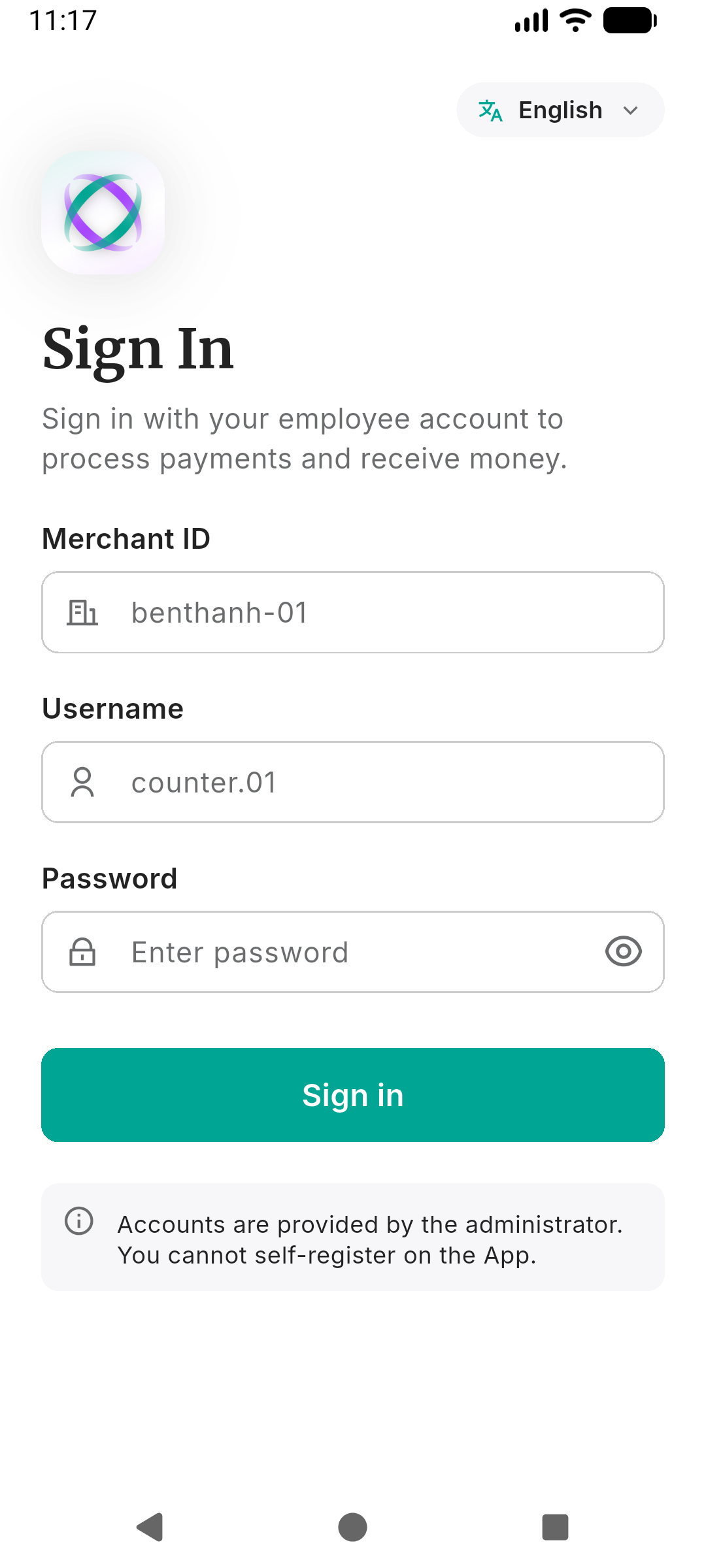
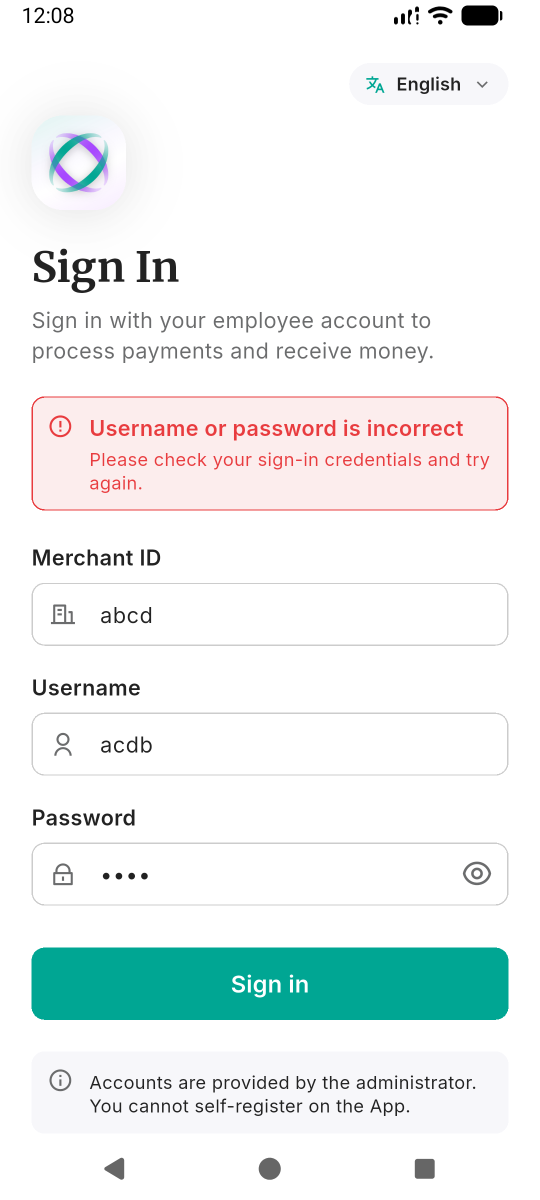
When you open the app for the first time, you will see the sign-in screen. You need three pieces of information — your company admin should have given these to you:
- Merchant ID — the short name for your company (e.g.
vinasun,mailinh). - Username — your personal login name.
- Password — your login password.
Fill in all three fields and tap Sign in.
If you see an error after tapping Sign in, double-check your Merchant ID and username — they are case-sensitive. If you still cannot sign in, contact your company admin.
The default language follows your device's language setting. You can tap the language button in the top-right corner to switch between English and Tiếng Việt.
2. Taking a payment
This is the action you will use most — collecting payment from a passenger at the end of a trip.
Step 1 — Enter the trip charges
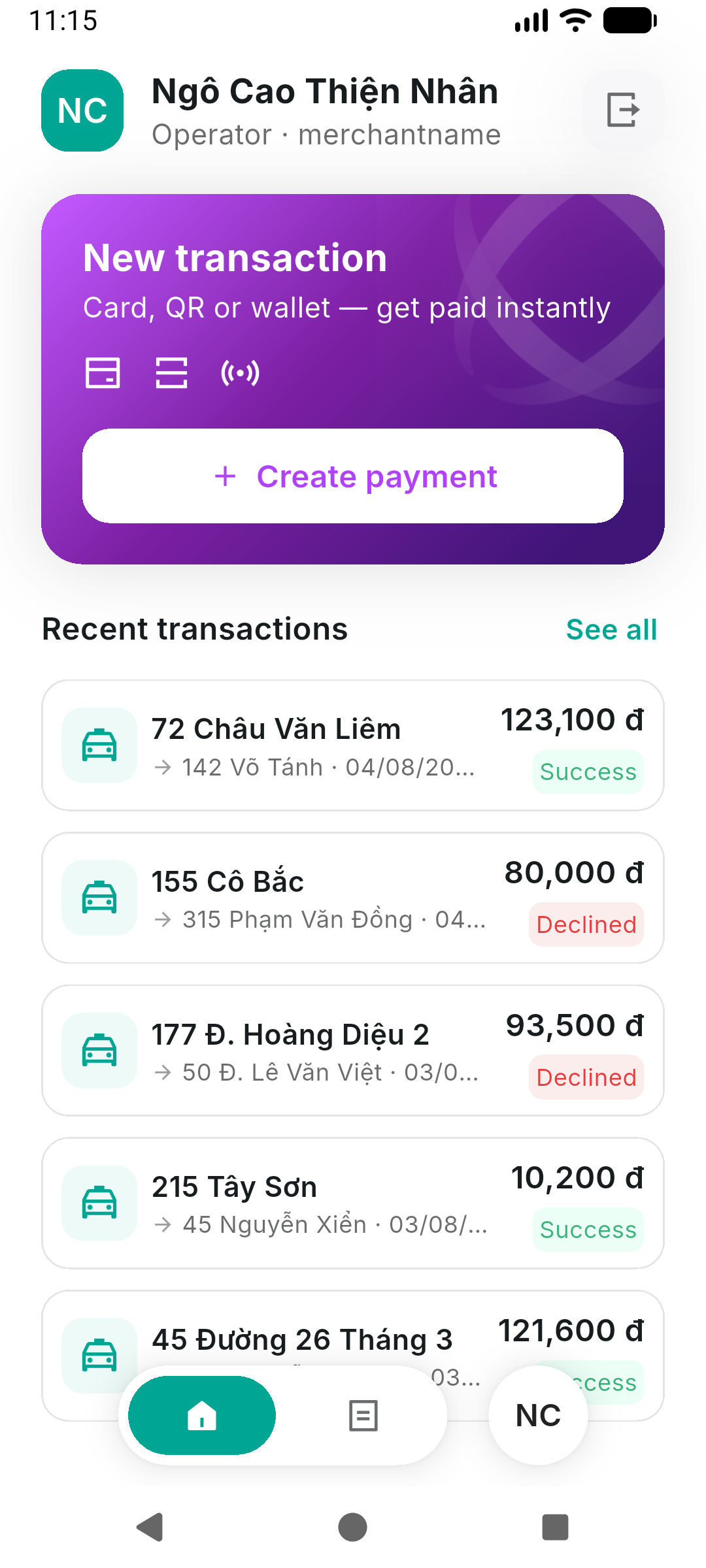
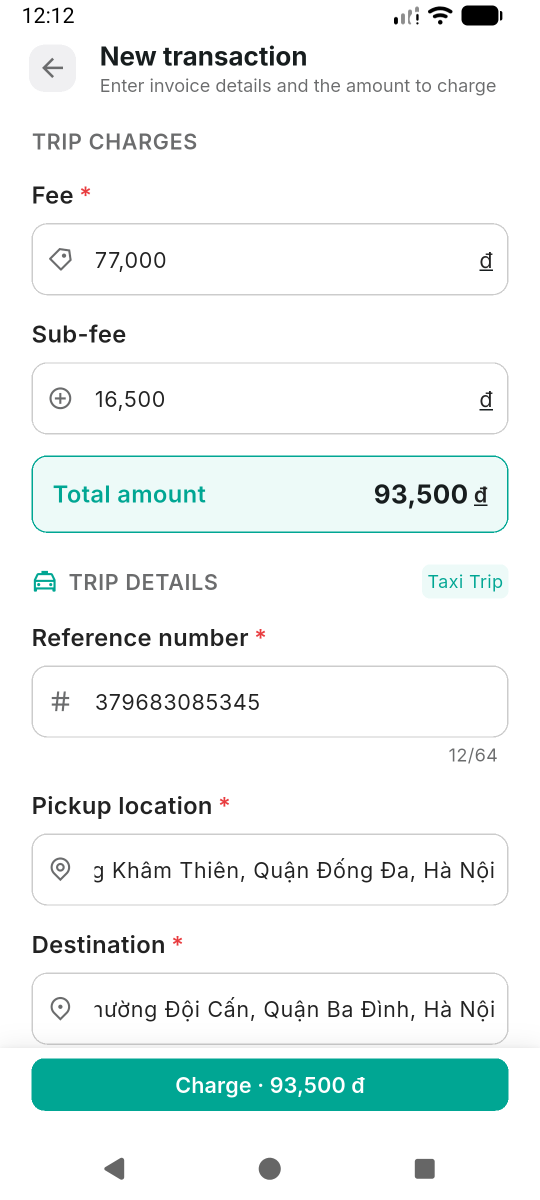
- From the Home screen, tap the Create transaction card.
- Enter the fare — the main meter amount.
- If there is an extra charge (tolls, airport surcharge, waiting fee, etc.), enter it in the sub-fee field. The app adds both together automatically.
- Fill in the trip details:
- Reference — your trip or booking number (required).
- Pick-up location — where you picked up the passenger.
- Destination — where you dropped them off.
- Plate number — pre-filled from your profile. Change it only if you are driving a different vehicle today.
Step 2 — Read the card
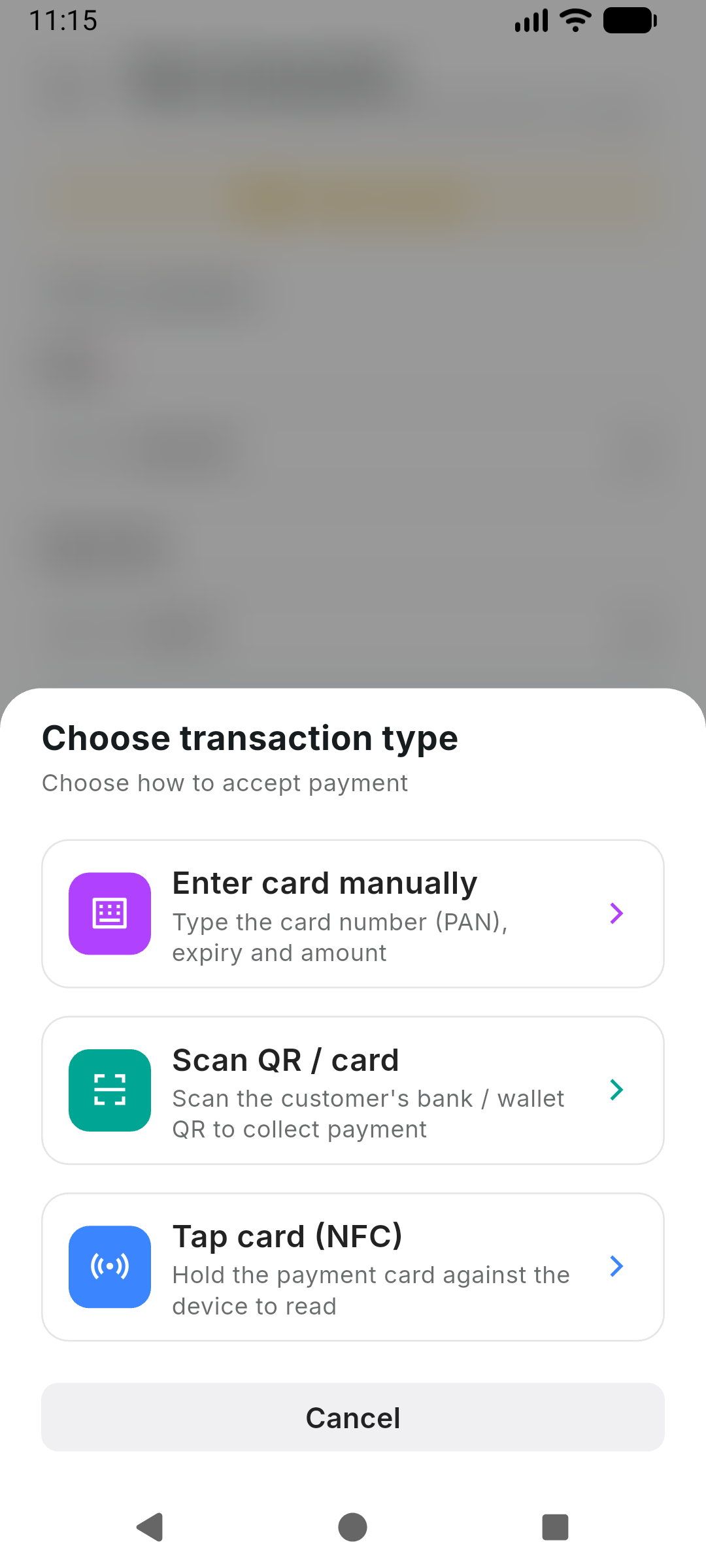
Tap the Charge button at the bottom. The app will ask you how to read the passenger's card. There are three options:
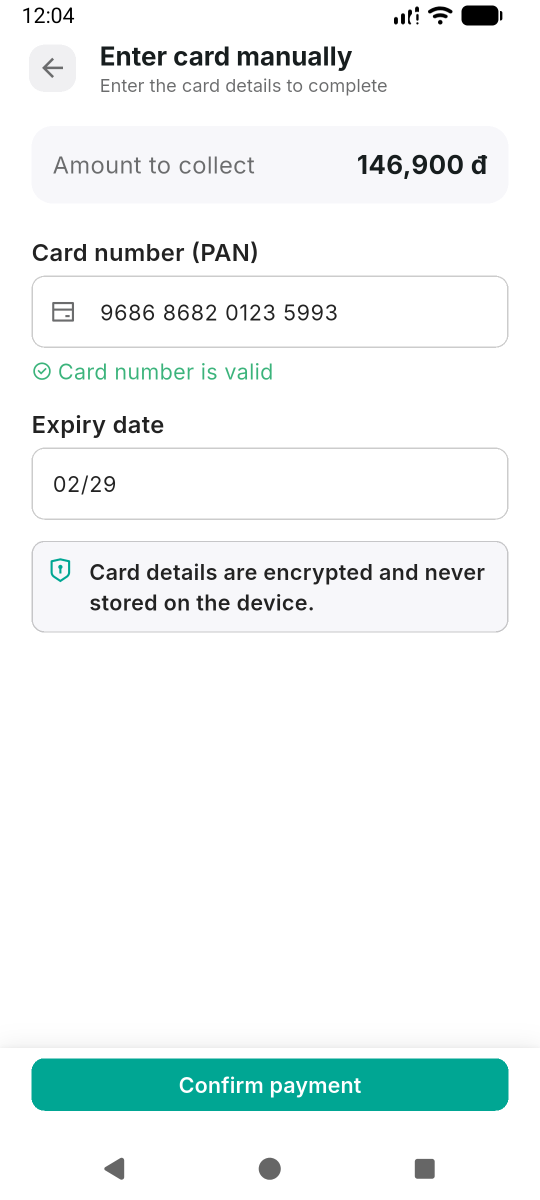
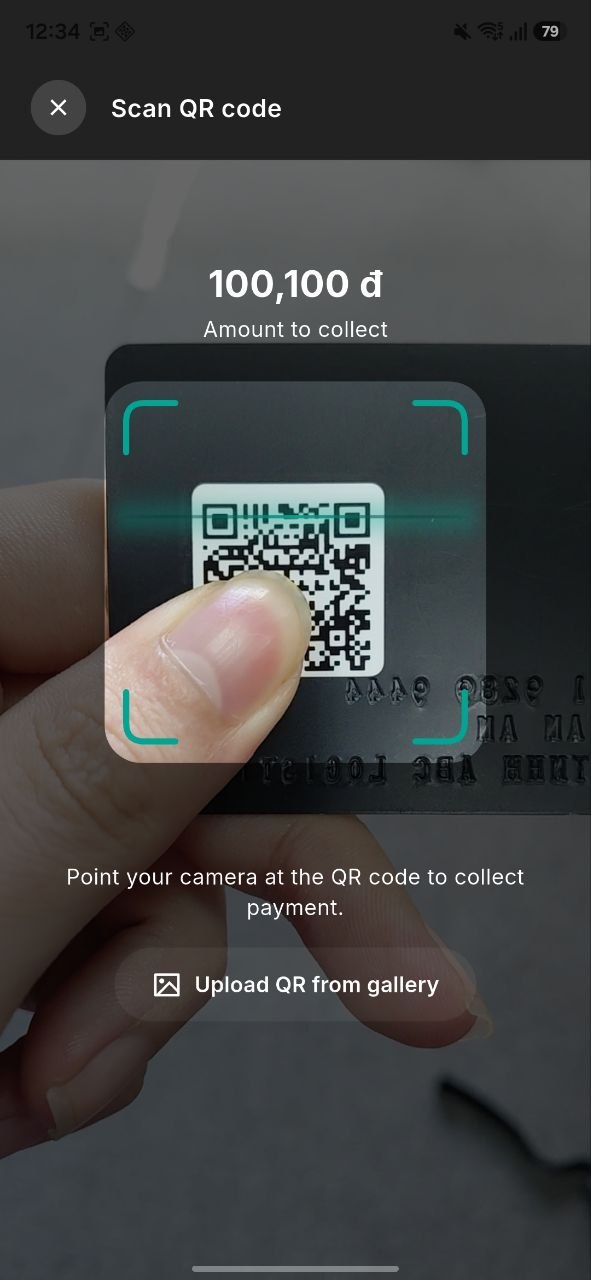
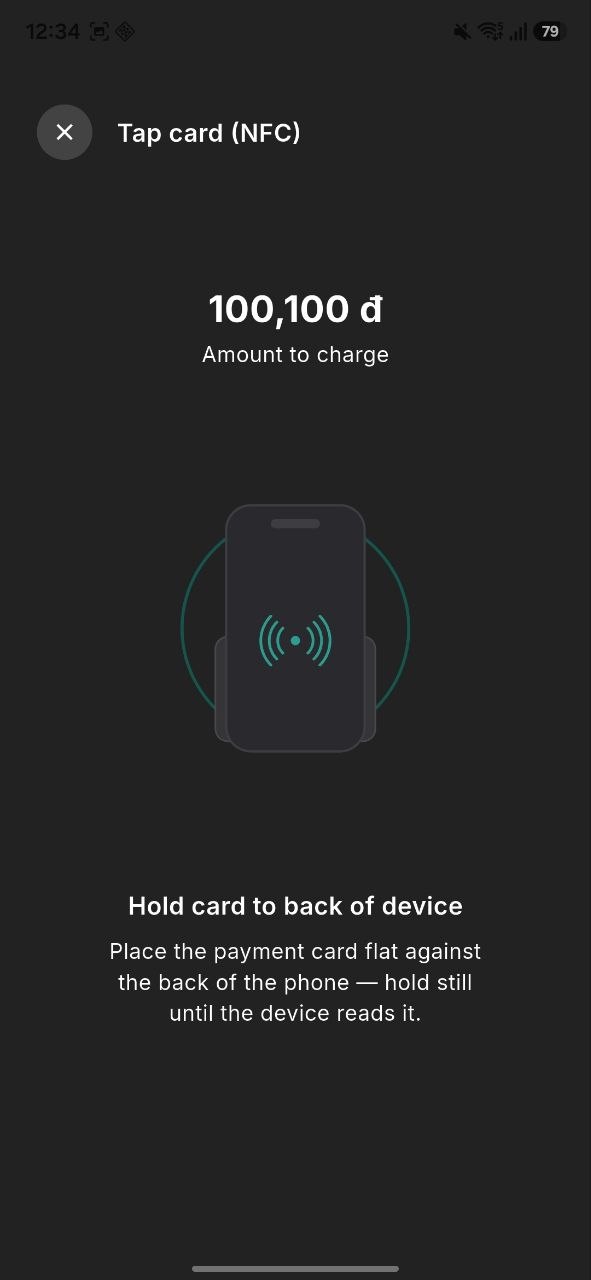
| Method | When to use | What to do |
|---|---|---|
| Tap (NFC) | The passenger has a physical card and you are using an Android phone with NFC | Hold the card flat against the back of your phone for 2–3 seconds until the app finishes scanning |
| Scan (QR) | The passenger shows a QR code on their phone | Point your camera at the QR code; it reads automatically |
| Enter manually | NFC is not available or the QR code will not scan | Type the 16-digit number printed on the card |
- Tap (NFC) is currently only supported on Android devices. If you are using an iPhone, use Scan or Enter manually instead.
- If your Android phone does not have NFC or NFC is turned off, the app will tell you. Go to your phone's Settings and enable NFC, then try again.
Step 3 — Customer confirms
After the card is read, the passenger must confirm the payment on their end. Depending on the card settings, they will either:
- Receive an SMS code (OTP) and enter it on your screen, or
- Enter their PIN code (a fixed secret code assigned to their card).
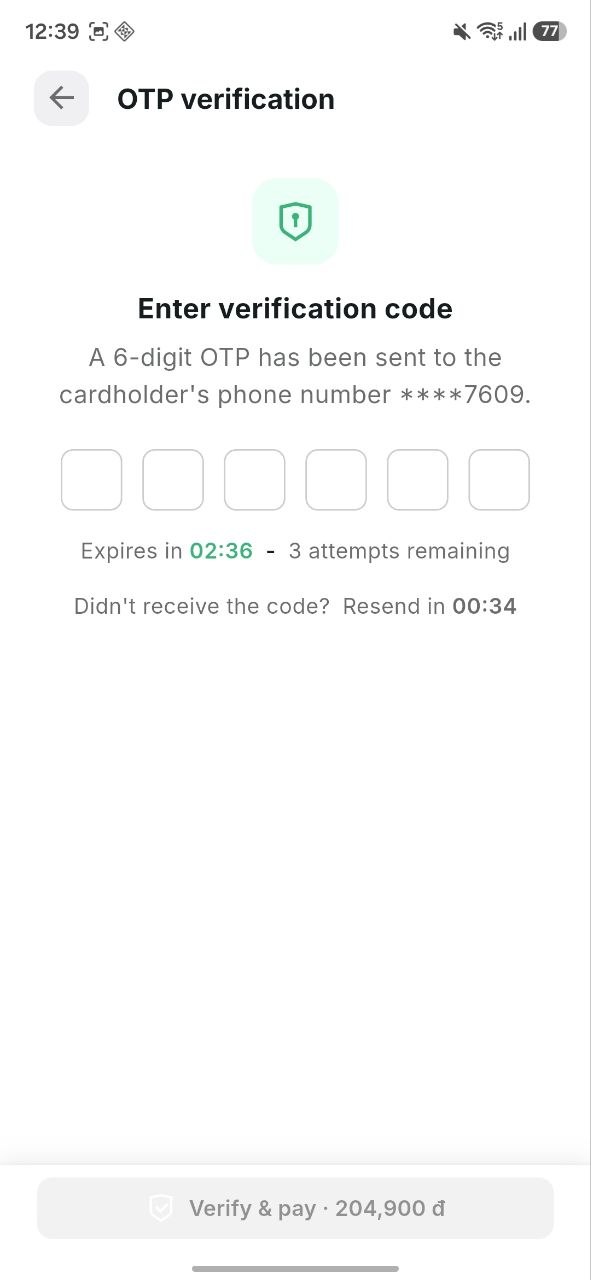
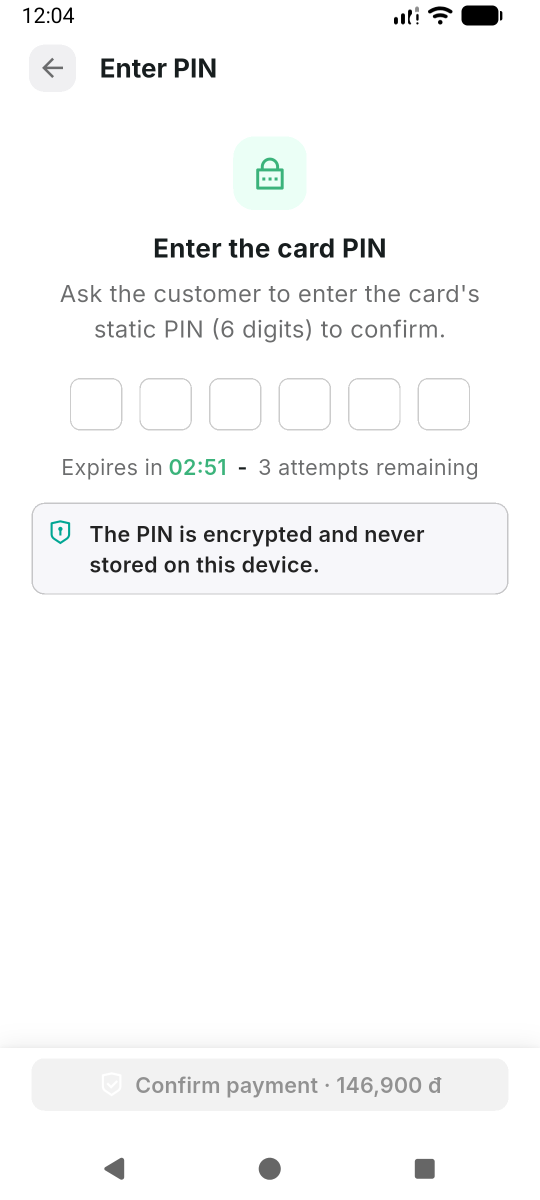
Do not close the app or go back while waiting for the passenger to enter their code — the payment may be cancelled.
Both OTP and PIN have a limited number of tries. If the passenger enters the wrong code too many times, the card will be locked and the payment will be declined. The passenger must contact their manager or administrator to unlock the card before they can pay again.
Step 4 — Done
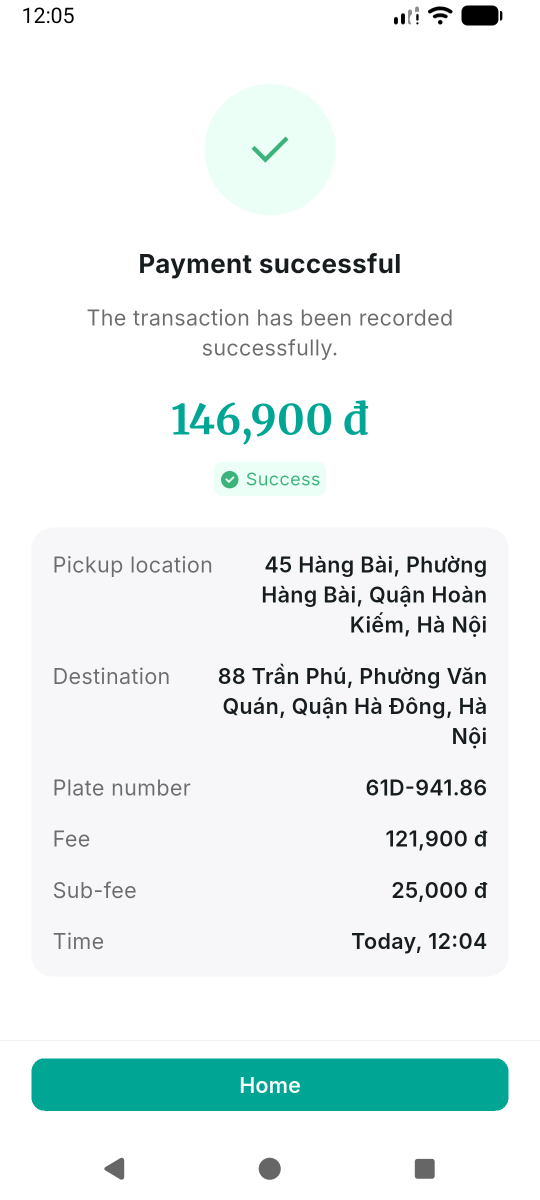
When the payment succeeds, you will see a confirmation screen showing the amount, date, time, and a booking reference. The trip is complete — you can show this screen to the passenger as a receipt.
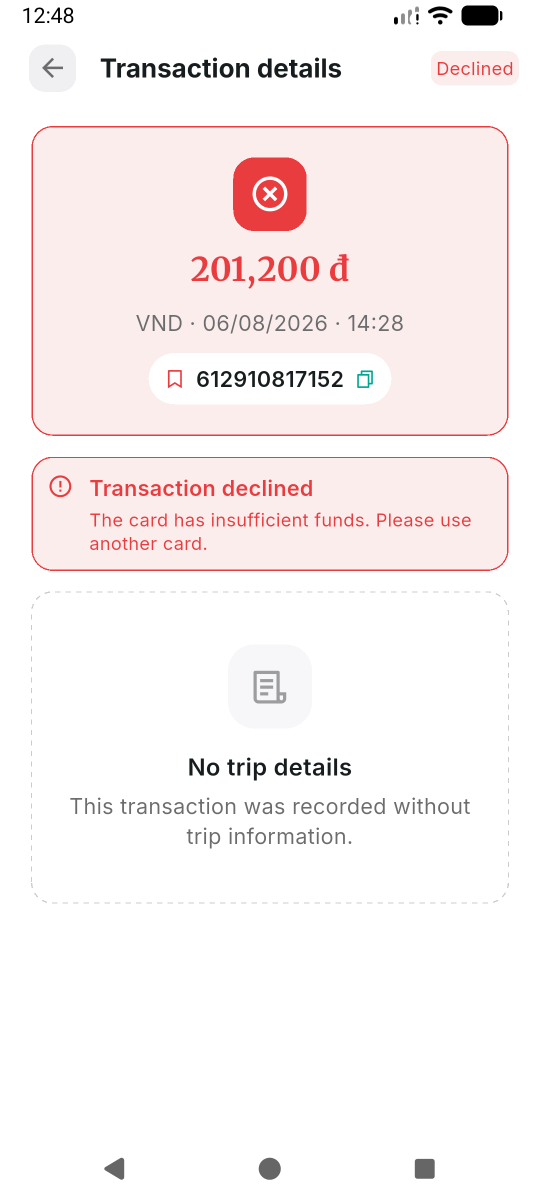
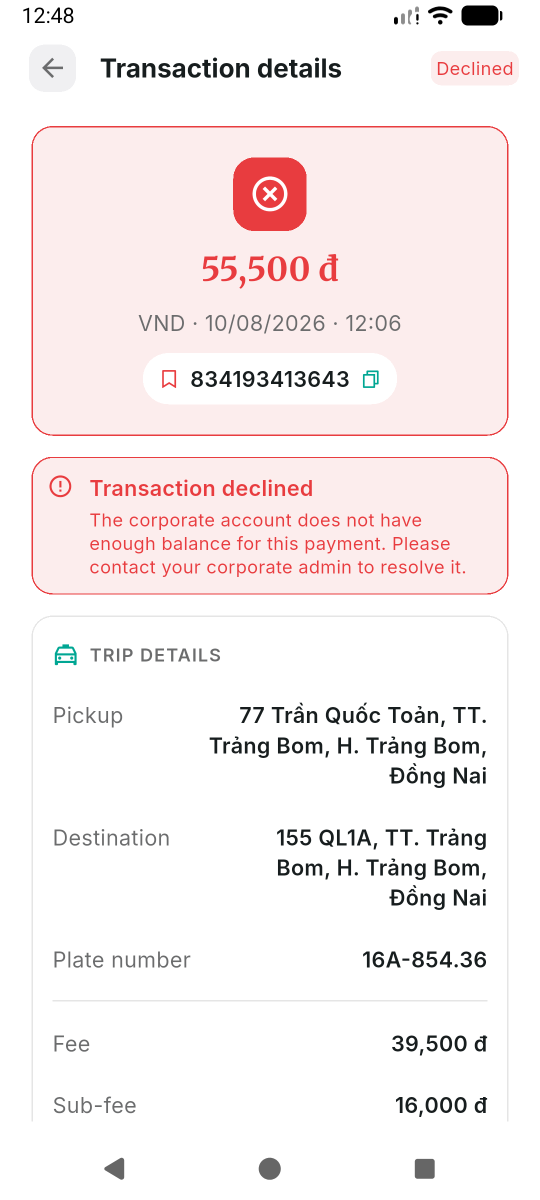
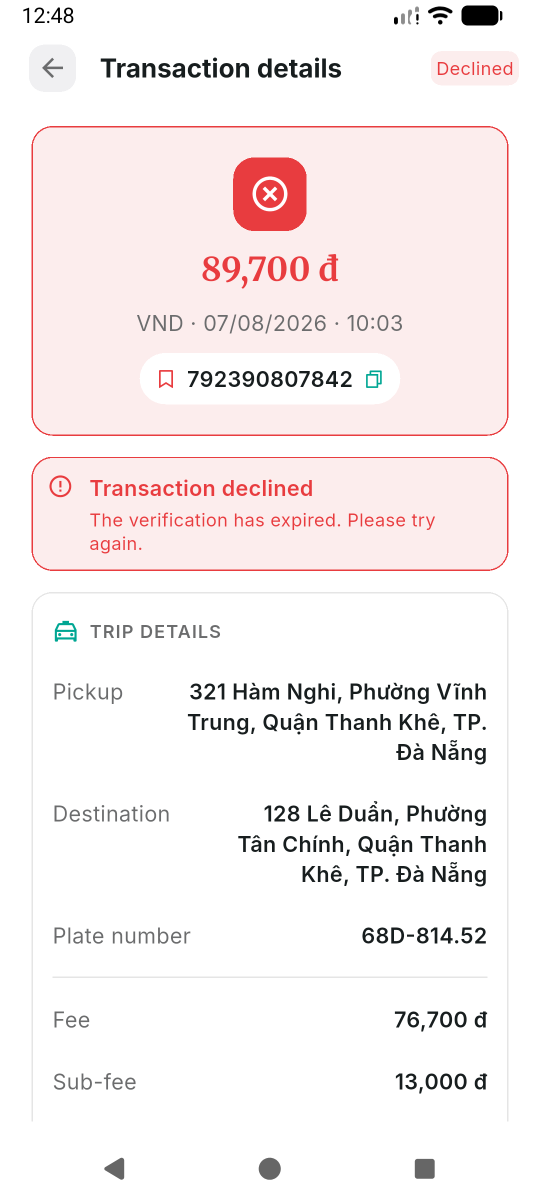
If the payment is declined, the app will show an error message explaining why (for example: insufficient balance, card frozen, or wrong verification code).
3. Viewing your payment history
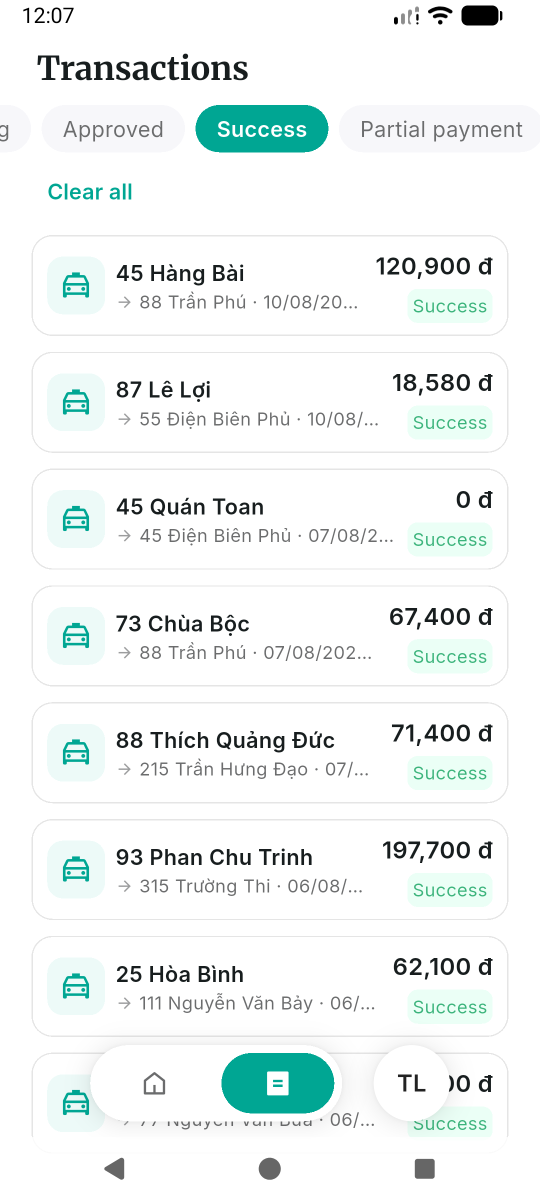
Tap the Transactions tab in the bottom navigation to see all your past payments.
The transaction list
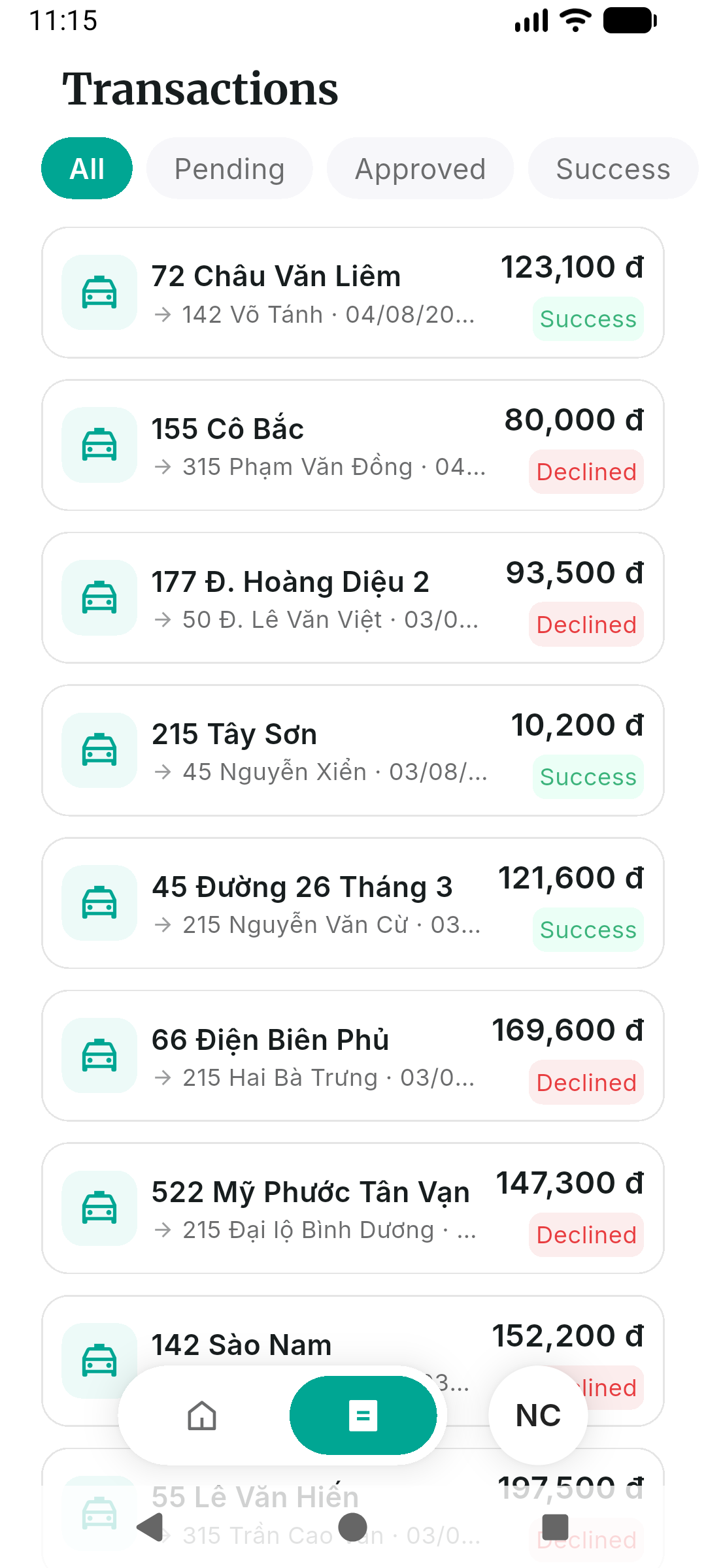
Each card shows:
- Pick-up and drop-off locations (for taxi transactions), or the reference number if locations are not available.
- A status tag (color-coded).
- The amount and currency.
- The date and time of the payment.
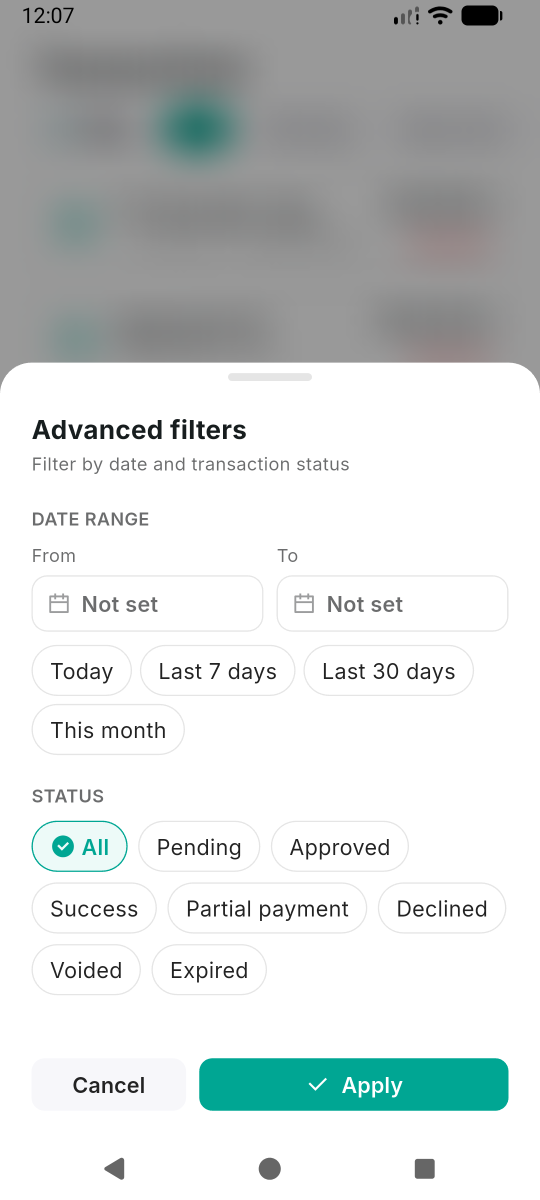
Filtering
Use the filter bar at the top to narrow the list:
- Tap a status chip (All, Approved, Pending, Declined, etc.) to show only that type.
- Tap the filter icon to open advanced filters — you can choose a date range and/or a status.
- Clear filters by tapping the "×" next to an active filter, or "Clear all".
Payment statuses
| Status | Color | What it means |
|---|---|---|
| Pending | Amber | Waiting for the passenger to finish verification — you can continue this |
| Approved | Green | Payment succeeded — money was taken from the passenger's card |
| Success | Green | Payment completed and settled to the company account |
| Partial payment | Amber | Only part of the payment was captured (the rest is unprocessed) |
| Declined | Red | Payment was rejected (wrong code, insufficient balance, card frozen, etc.) |
| Voided | Grey | Payment was cancelled before it was settled |
| Expired | Grey | Payment timed out and is no longer valid |
Opening a transaction
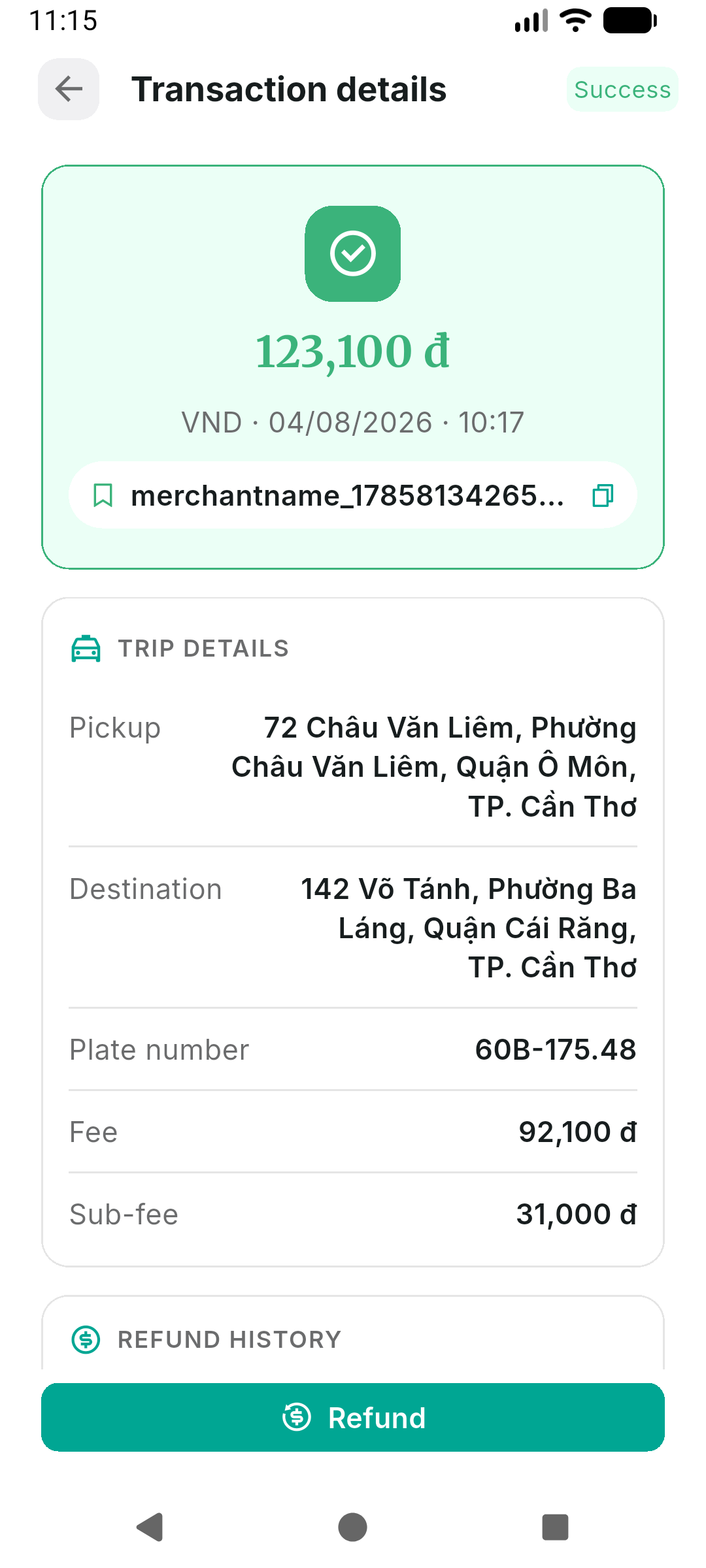
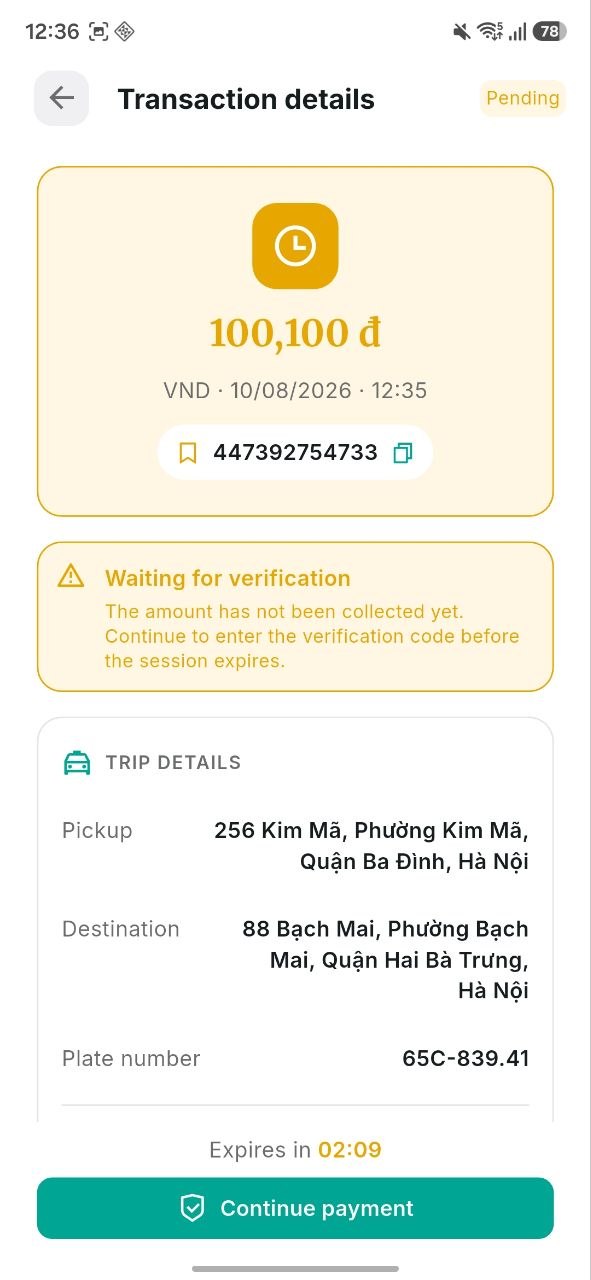
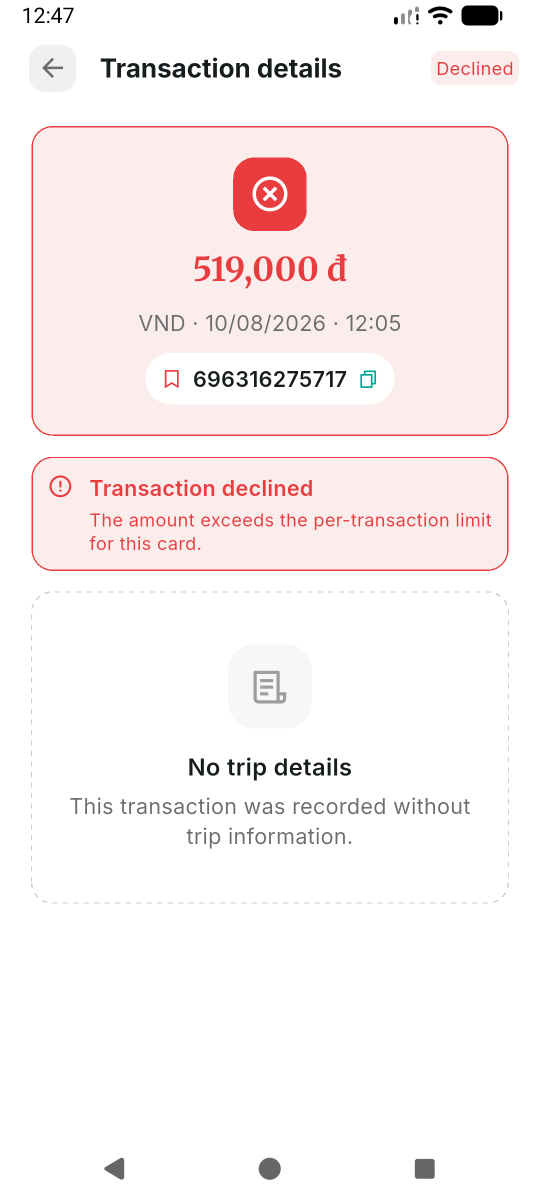
Tap any transaction card to see its full details — trip information and the fare breakdown.
If a payment is still Pending, this means the passenger has not yet entered the verification code and the session is still within the allowed time. You will see a "Continue payment" button. Tap it to continue the payment verification.
Declined transactions show the specific reason why the payment was rejected:
Quick reference
| I want to... | Go to... |
|---|---|
| Collect a payment | Home → Create transaction |
| See my past payments | Transactions tab |
| Continue a pending payment | Transactions → tap the pending payment → Continue payment |