Linking a Card from Zalo — Rider's Guide
This guide is for riders who want to pay for rides with an XPAY card. Linking the card to your account lets CS charge rides to it — you won't need to read out the card number and PIN on every call.
You will need: your phone, your XPAY card, and the PIN printed with the card.
1. Open the card-linking page from Zalo
Open the xperise Zalo OA chat and tap Link thẻ. The card-linking page opens in your browser.
The page only works when opened from the Link thẻ button, and each link only works for a short time. If you see one of these, go back to Zalo and tap Link thẻ again (or tap Open Zalo):
| You see | Why |
|---|---|
| Can't open card linking | The page wasn't opened from the Zalo button |
| This link has expired | The link is too old |
| This link isn't valid | The link can't be used |
Tap EN / VI at the top to change the language.
Linking takes three steps: Phone → Verify → Card.
2. Enter your phone number
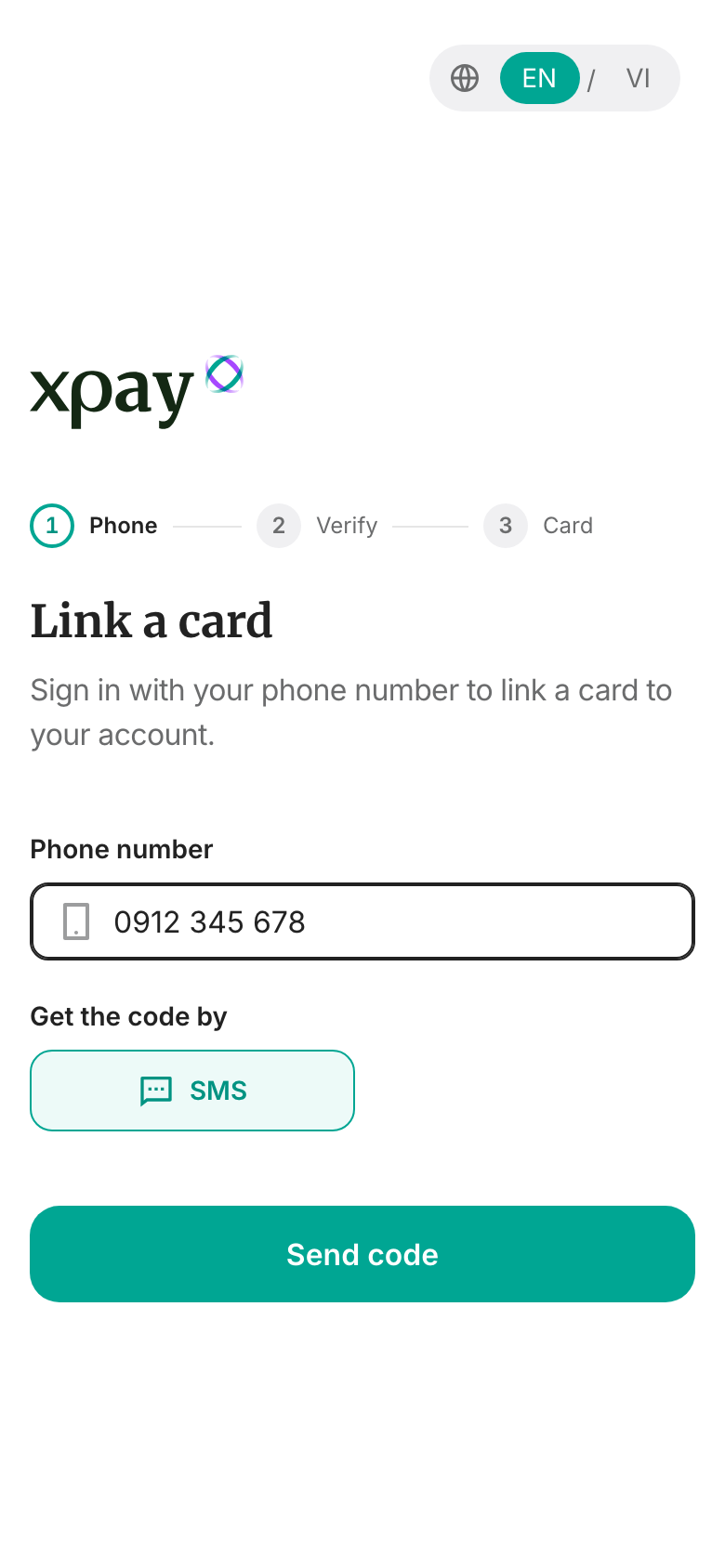
- Enter your Phone number.
- Tap Send code. A 6-digit code is sent to you by SMS.
3. Enter the code
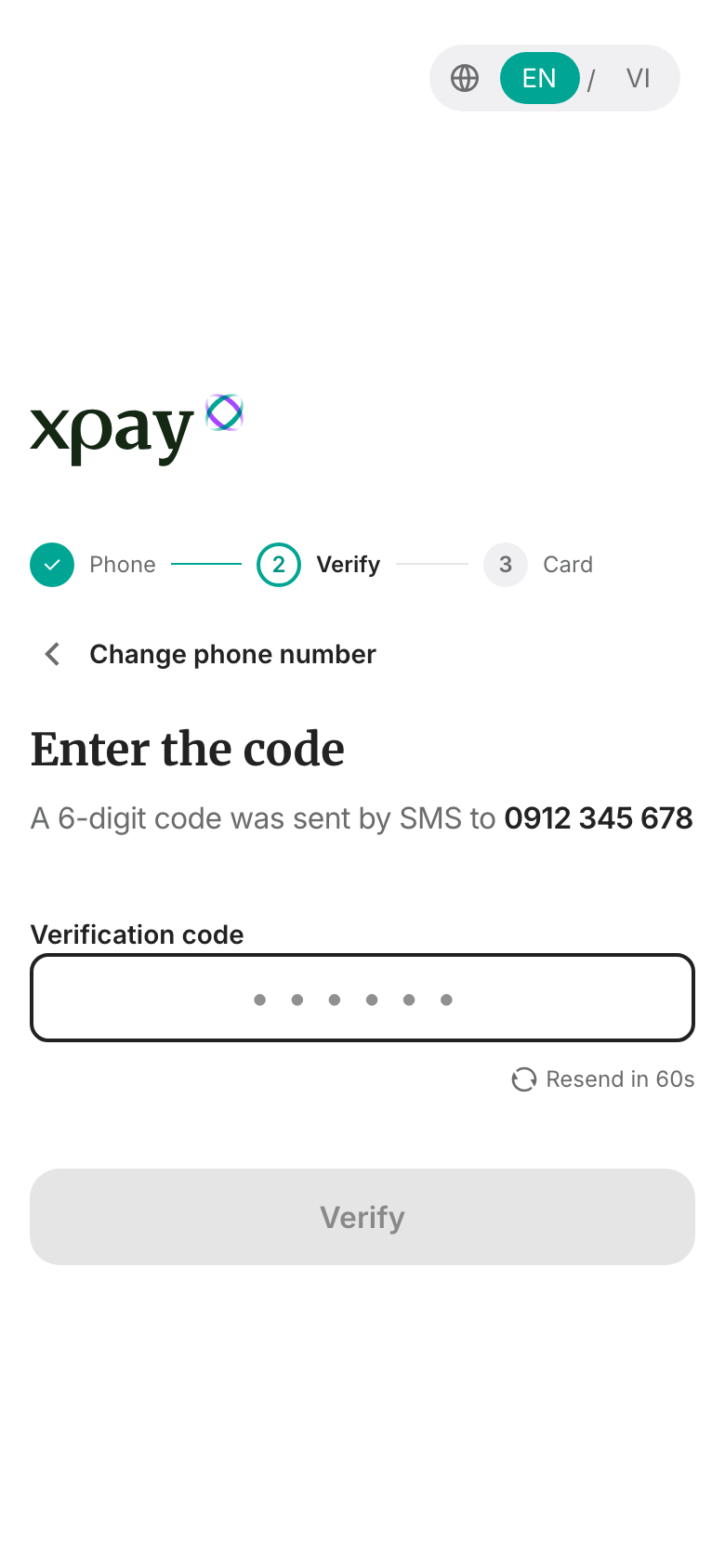
- Type the 6-digit code from the SMS. If you paste it, it's checked right away; otherwise tap Verify.
- Didn't get it? Tap Resend code — it becomes available 60 seconds after the last code was sent.
- Wrong number? Tap Change phone number to go back.
If you signed in on this device before, the page may skip the phone and code steps and go straight to your card. To use a different account, tap Sign out.
4. Enter your card
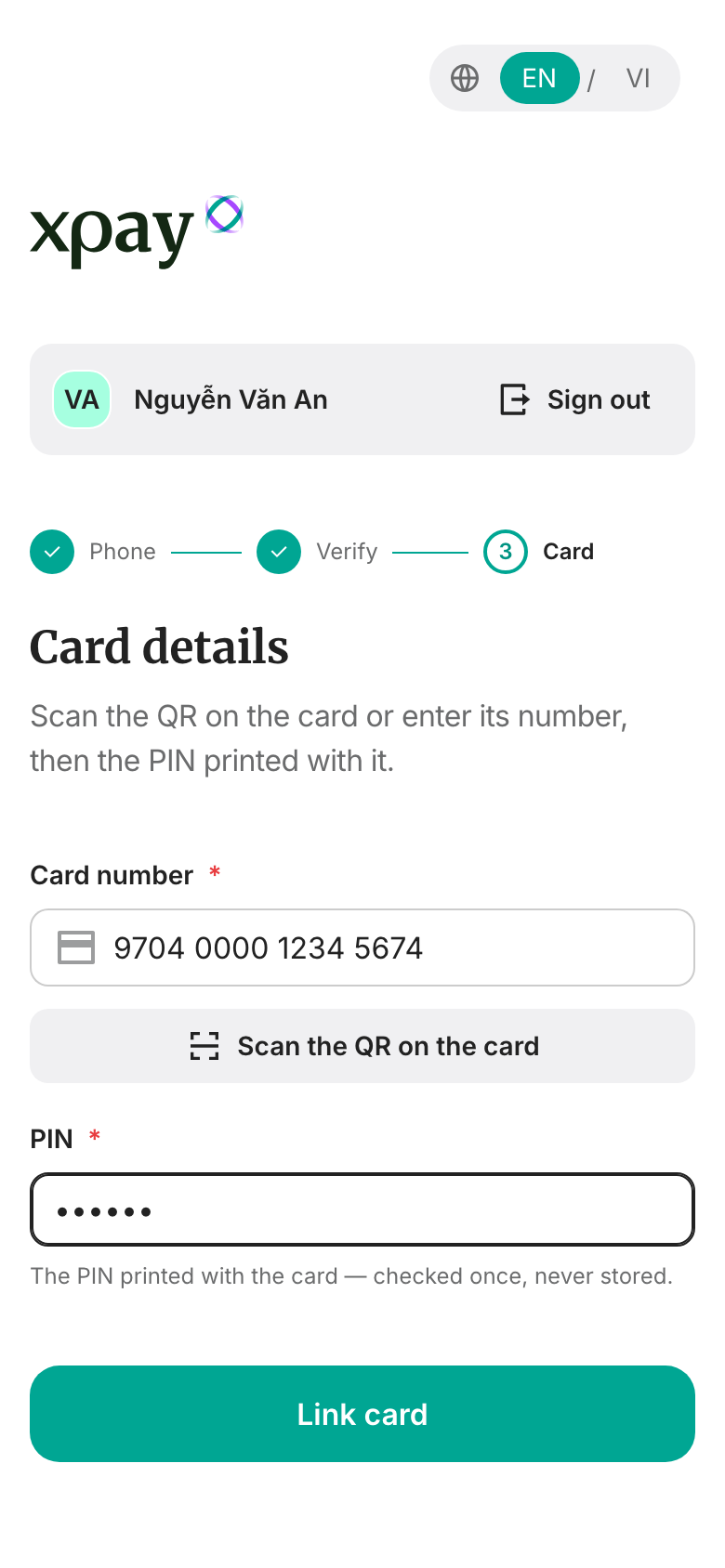
- Your name — asked only if your account has no name yet. Enter your Last name and First name as they should appear in the card's company.
- The card — either:
- tap Scan the QR on the card and hold the QR inside the frame. Once it's read you'll see Card QR scanned — no need for the card number, just the PIN. If the camera can't open, tap Take a photo of the QR instead. Or
- type the Card number. A typo is caught right away: "Invalid card number — check the digits."
- PIN — the 6-digit PIN printed with the card. It's checked once and never stored.
- Tap Link card.
5. Done
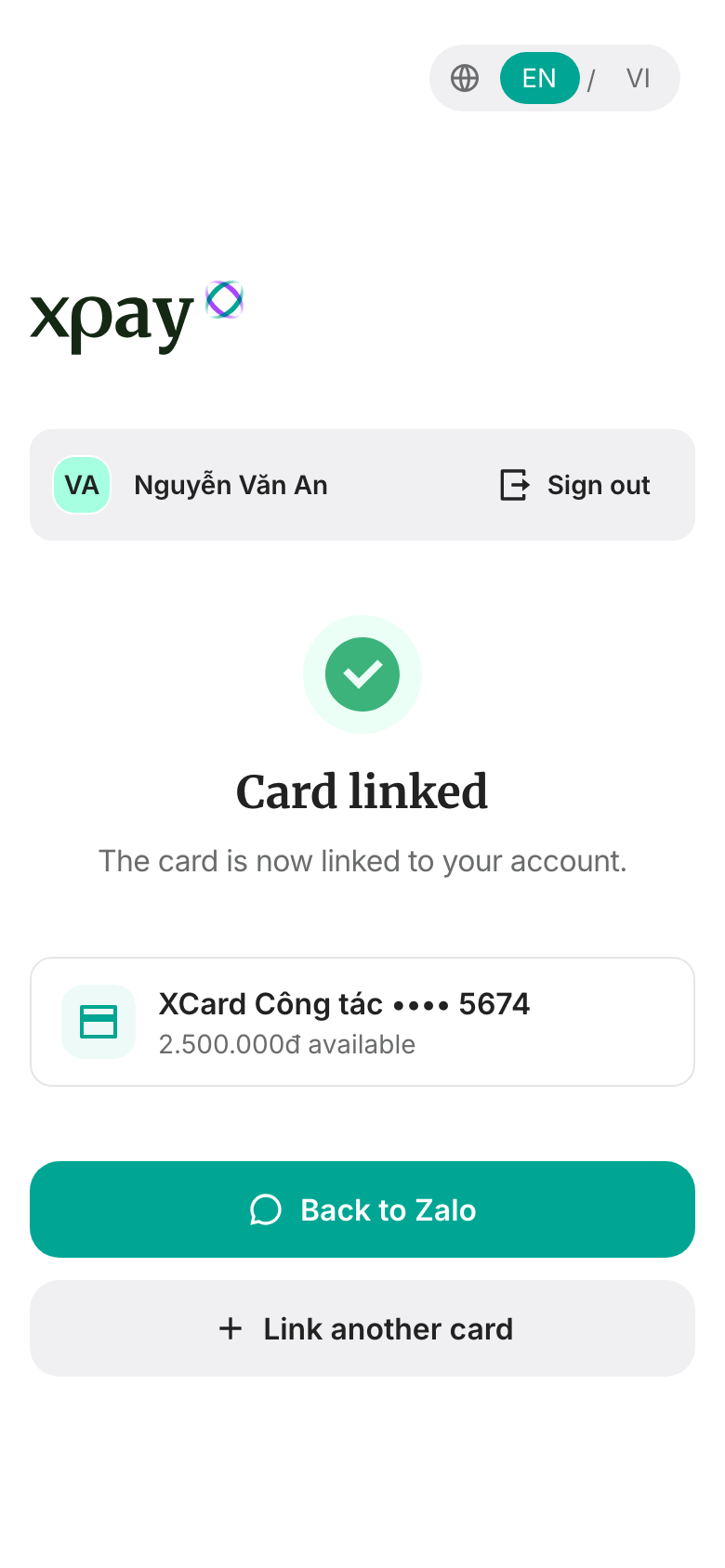
You'll see Card linked with the card and its available balance:
- "The card is now linked to your account." — or
- "You were added to the card's company and the card is linked to your account." — when the card belongs to a company you weren't part of yet.
On your phone, tap Back to Zalo to return to the chat. Tap Link another card to add one more.
Troubleshooting
| Message | What to do |
|---|---|
| That code is wrong or has expired. | Check the SMS, or tap Resend code |
| Couldn't send the code. Please try again in a few minutes. | Wait, then try again |
| Your session expired — please enter your phone number again. | Start again from your phone number |
| This Zalo link was already used by another account. | Sign in with that phone number, or tap Link thẻ in Zalo again |
| That's not the QR on the card. | Scan the QR printed on the card |
| Couldn't read a QR in the photo. | Take the photo closer and sharper |
| Camera access wasn't allowed. | Allow the camera, or tap Take a photo of the QR |
| Couldn't reach the server. | Check your connection and try again |
If the card or PIN is refused, check both against the card and try again.
Related
- CS Dispatch Portal — Operator Guide — how CS uses linked cards to charge rides.